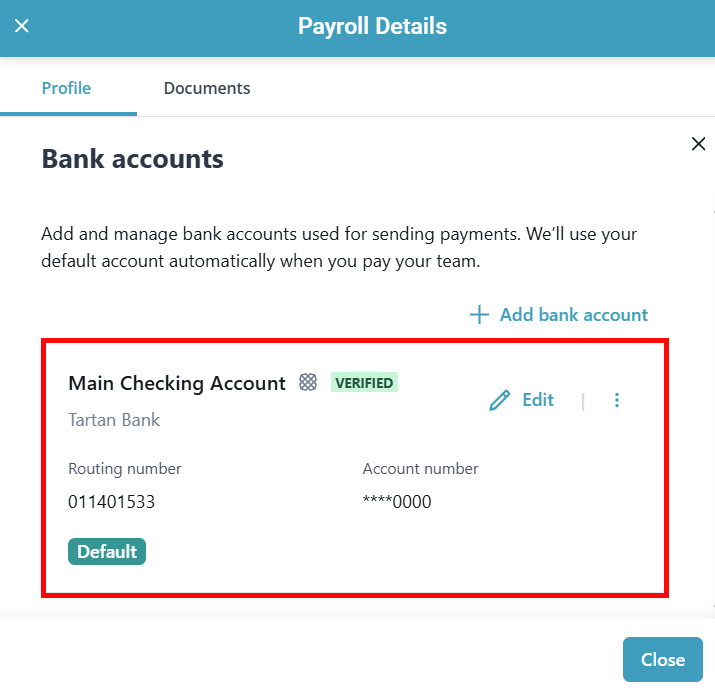
Add and Verify Your Bank Account with Micro Transactions
When setting up Pavillio Payroll, we need to make sure your business owns the bank account you enter. This helps keep things safe and accurate. We have to finish this check before money can be used to pay your workers or taxes.
Micro deposits are small deposits transferred to an employer’s bank account with the purpose of verifying ownership of the bank account.
The verification process takes 1-3 business days.
If possible, we recommend connecting your bank account via Plaid, as this process is much faster.
To manually add and verify your company bank account:
-
-
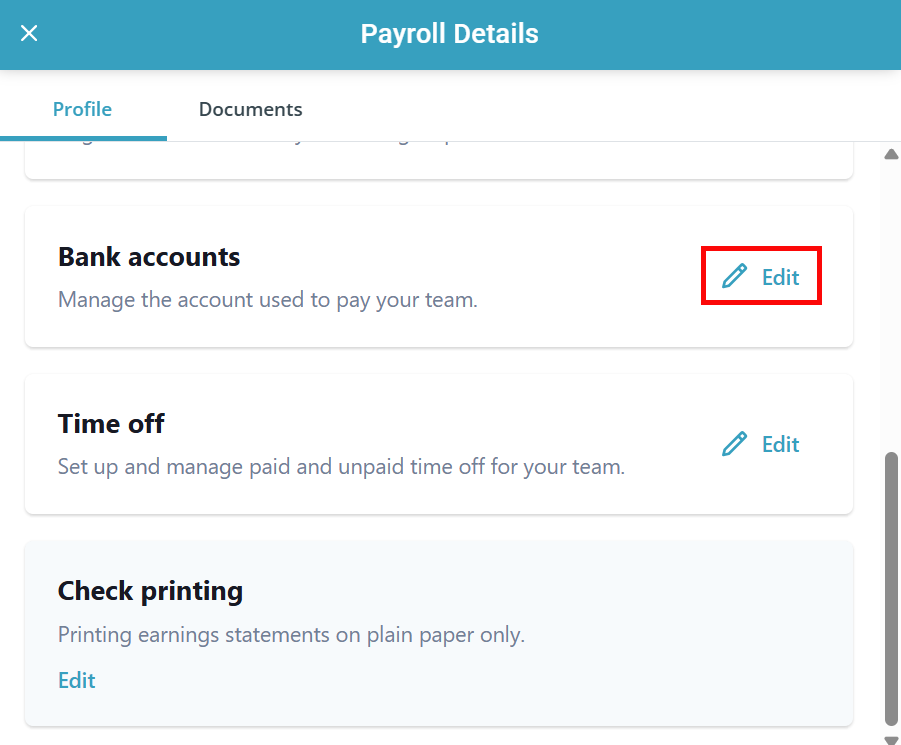
The Payroll Details panel opens. Scroll down to the Bank Accounts section and click the Edit link.
-
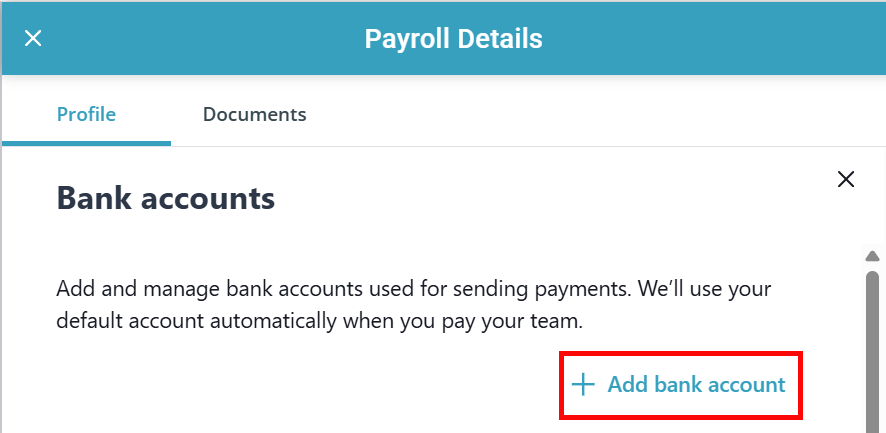
Click the + Add bank account link.
-
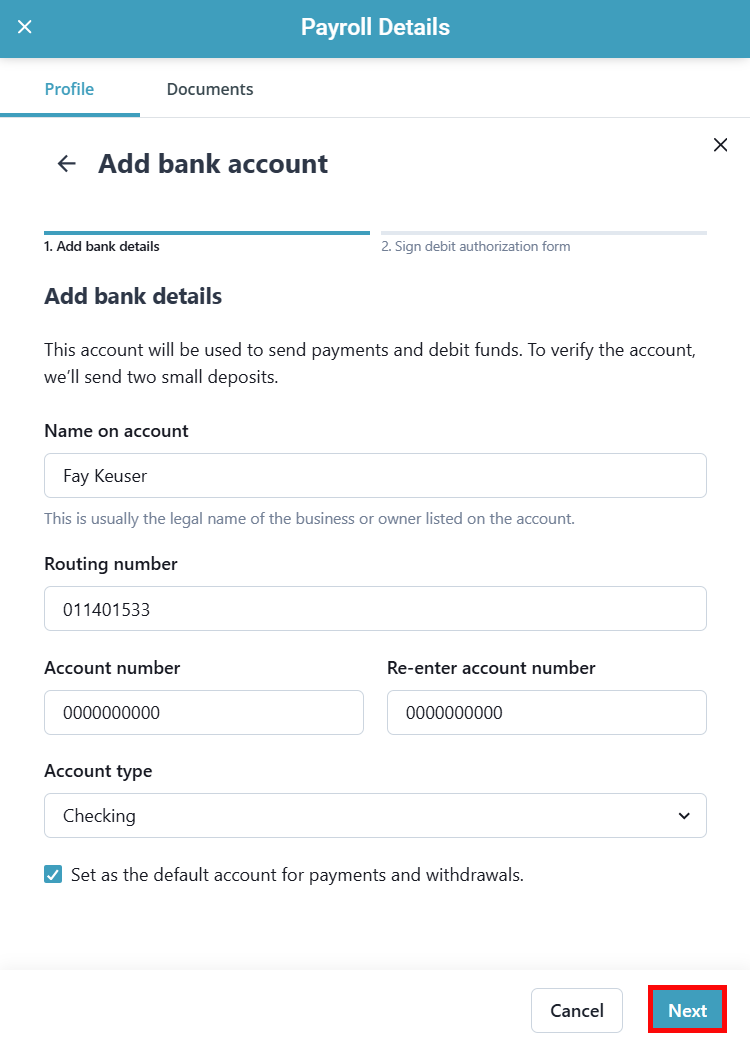
Fill out your bank account information. Mark the checkbox to set this bank account as the default account. Click Next.
-
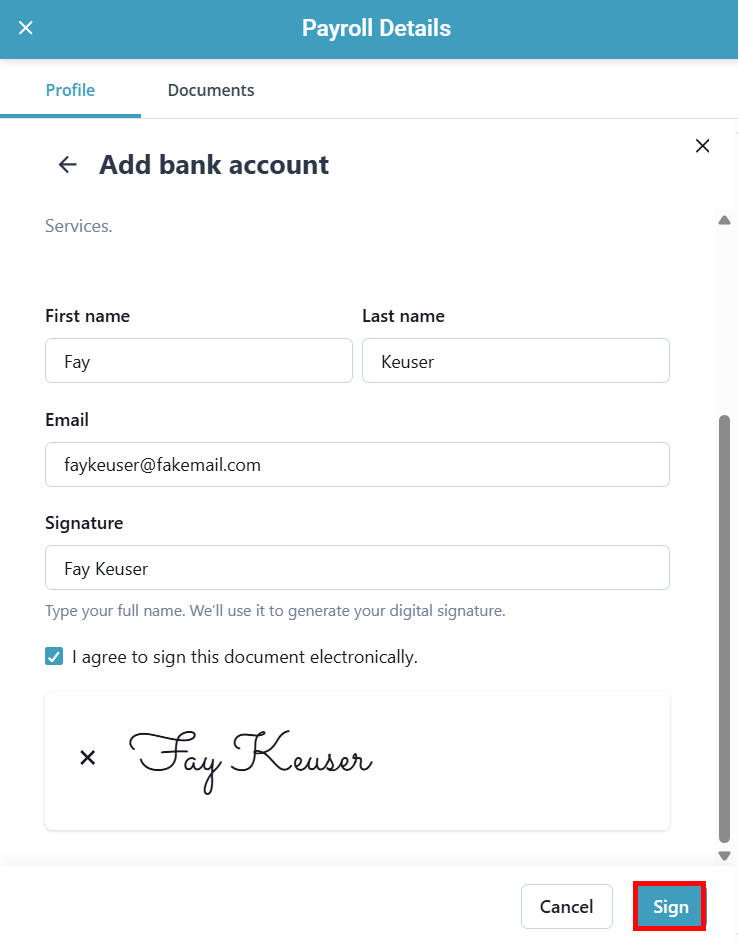
Fill out the Debit Authorization Form. This form authorizes the withdrawal of funds for the purposes of performing payroll services. Click Sign.
-
Once you've clicked Sign, three small transactions are sent to your bank account — two deposits and one withdrawal for the same total amount. Each deposit is under $1 and should appear in your account within about 3 business days.
-
Once the deposits appear in your bank account, go back to the Bank Accounts section of the Payroll Details panel and enter the amounts in the appropriate fields.
Your bank account is now connected.