Run Pavillio Payroll
Pavillio Payroll allows you to fulfill all of your payroll needs directly from within the Pavillio platform. After successfully completing the setup process, you can review employee hours, make updates to time off and reimbursements as needed, and submit your payroll.
During each payroll run, remember to manually enter any mileage, in-service, and other expense reimbursements. These items are not automatically included, so you need to add them for each applicable worker before finalizing payroll.
To run Pavillio payroll:
-
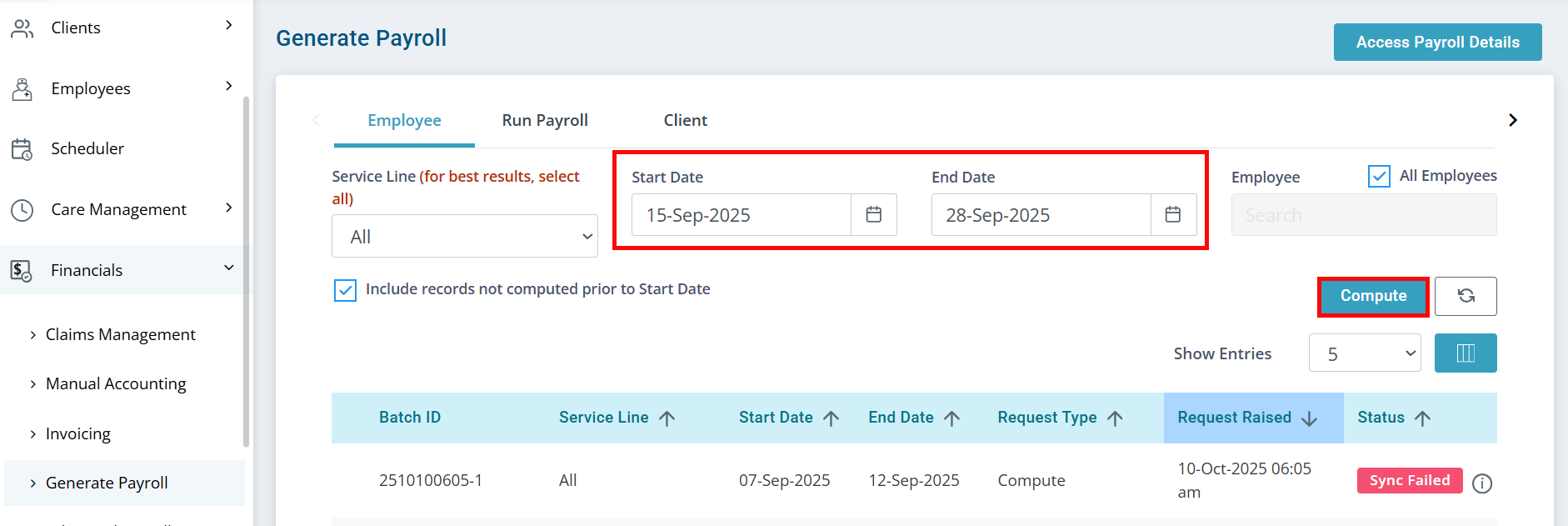
Go to Financials > Generate Payroll > Employee. Select the Start Date and End Date for your payroll, and then click the Compute button.
-
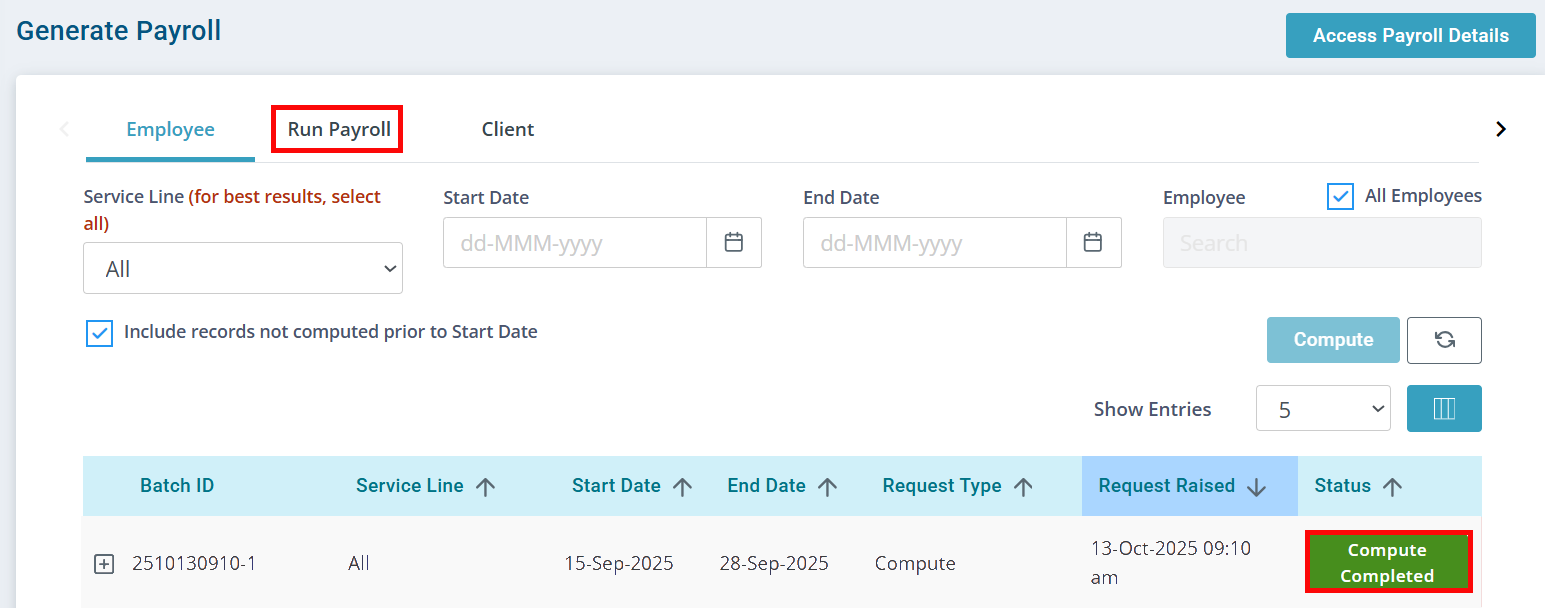
Once the Status column shows Sync Completed, select Run Payroll from the tabs at the top of the page.
-
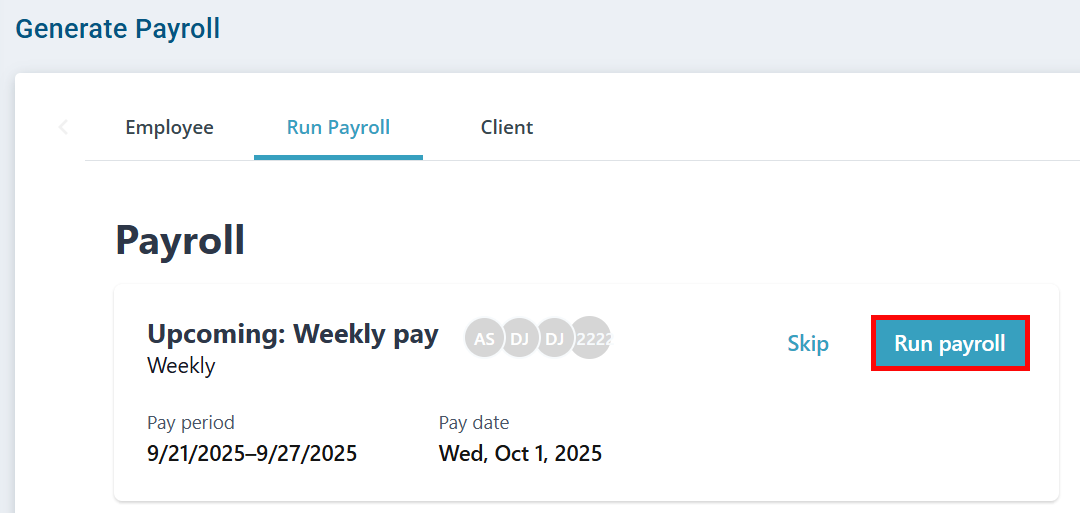
On the Run Payroll page, click the Run payroll button on the Upcoming: Weekly pay card.
-
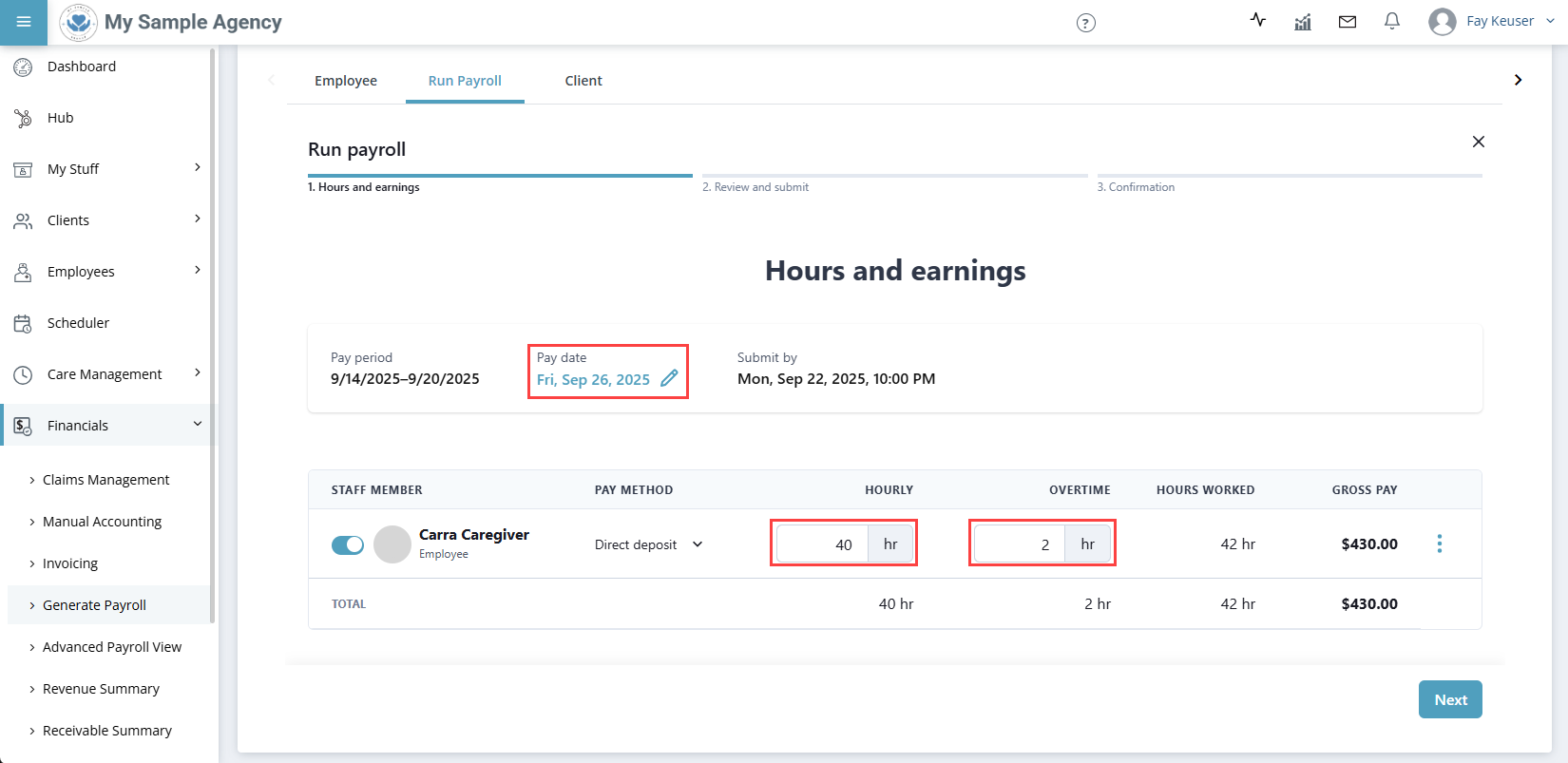
On the next page, review the following information and make any updates as necessary:
-
Pay Date: Select the pencil icon to adjust the payroll date.
-
Hourly: The number of hours each Employee has worked.
-
Overtime: The number of overtime hours each Employee has worked, if applicable.
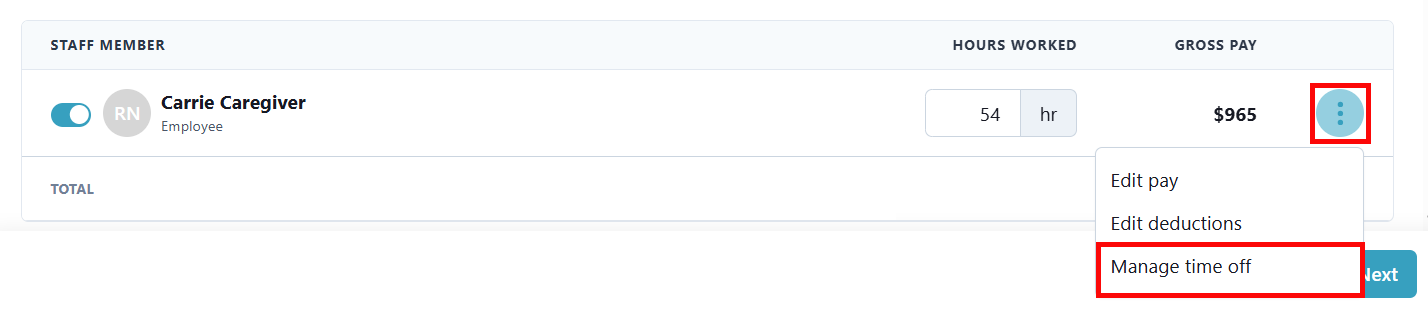
Select the Ellipsis to the right of an Employee's Gross Pay to make adjustments to the Employee's pay (such as adding a reimbursement or bonus), adjust deductions, or Manage time off.
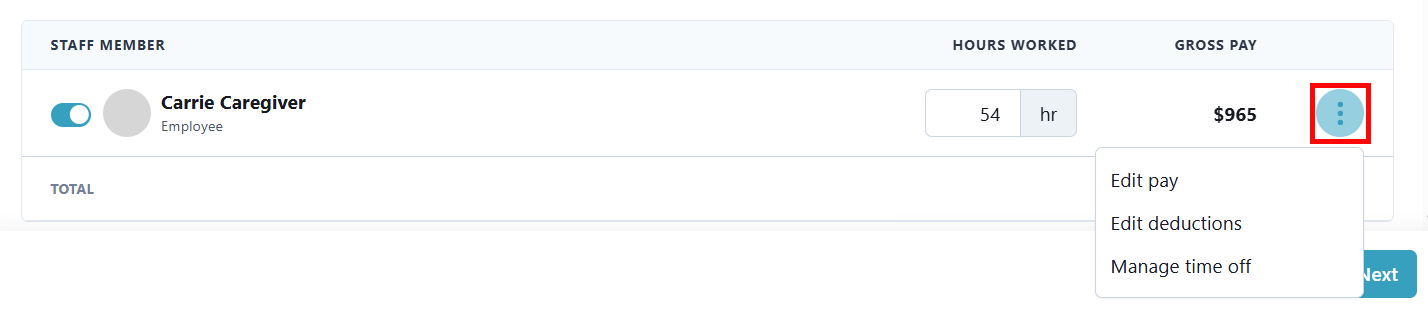
Click the dropdowns below for more information on adjusting Employee pay and time off:
Adjust Pay (Reimbursements, Overtime and Bonuses)
You can manually edit an Employee's pay beyond their working hours and time off. This can be used for reimbursements (In-Service, Expenses, Mileage), overtime, and bonuses.
To edit an Employee's pay:
-
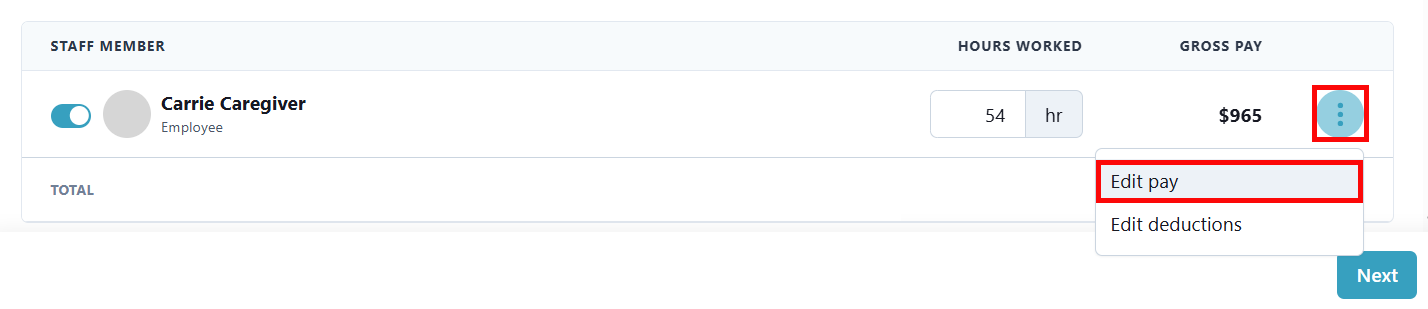
Select the Ellipsis to the right of an Employee's Gross Pay and select Edit pay.
-
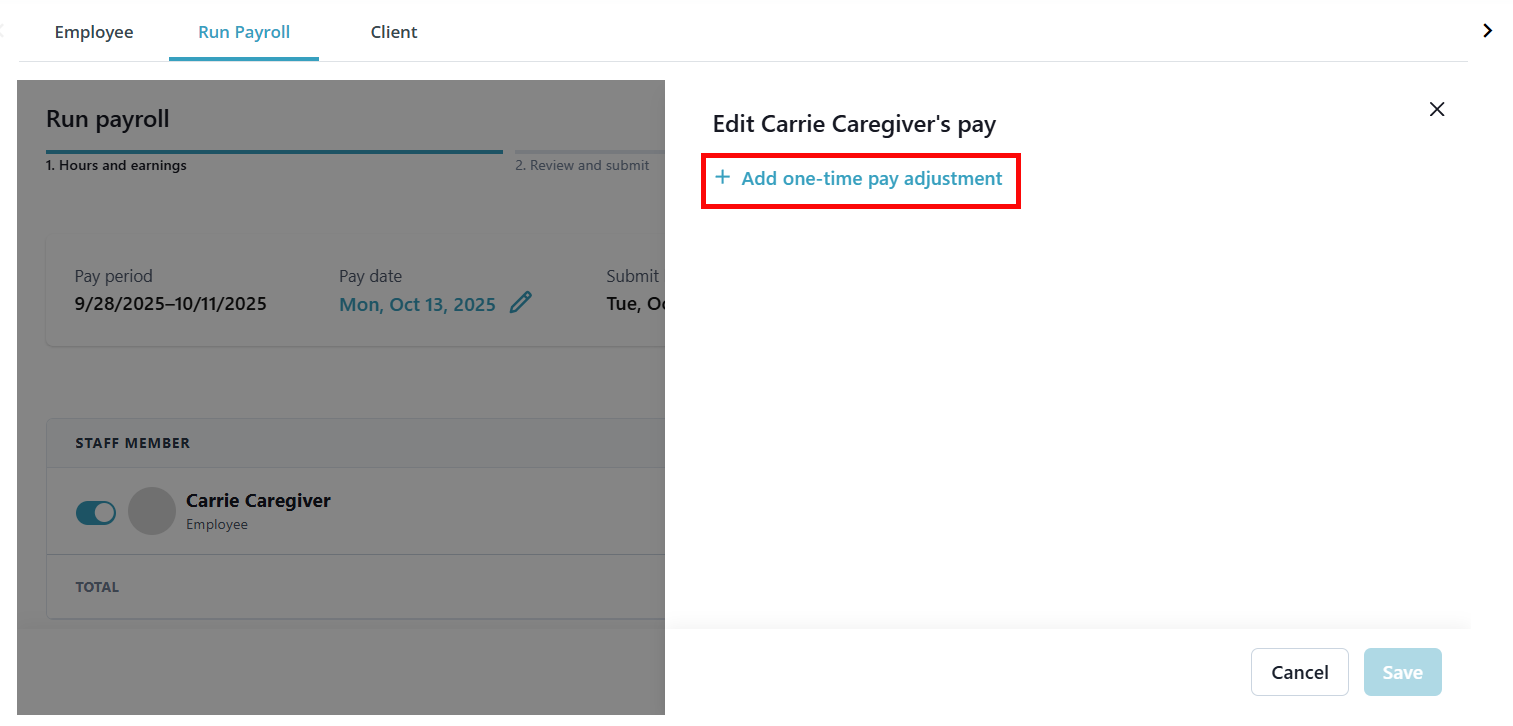
A side panel opens. Click + Add one-time pay adjustment.
-
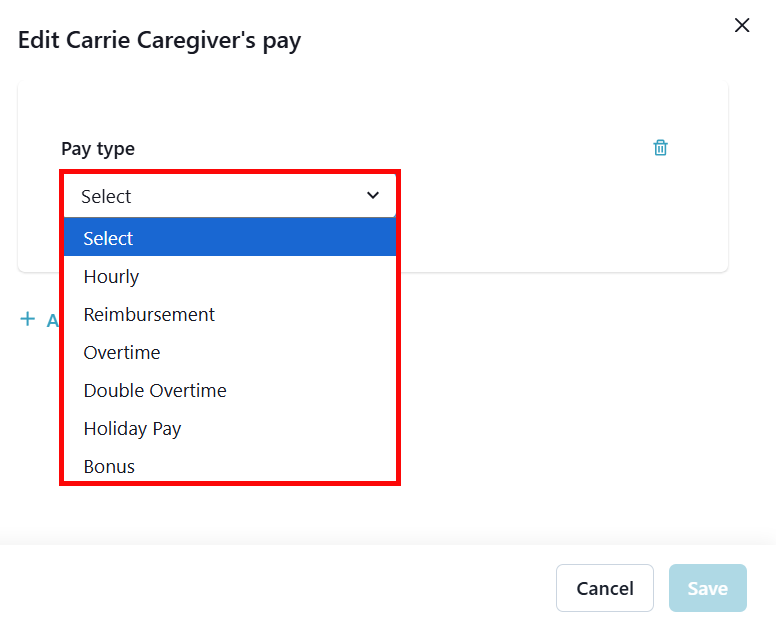
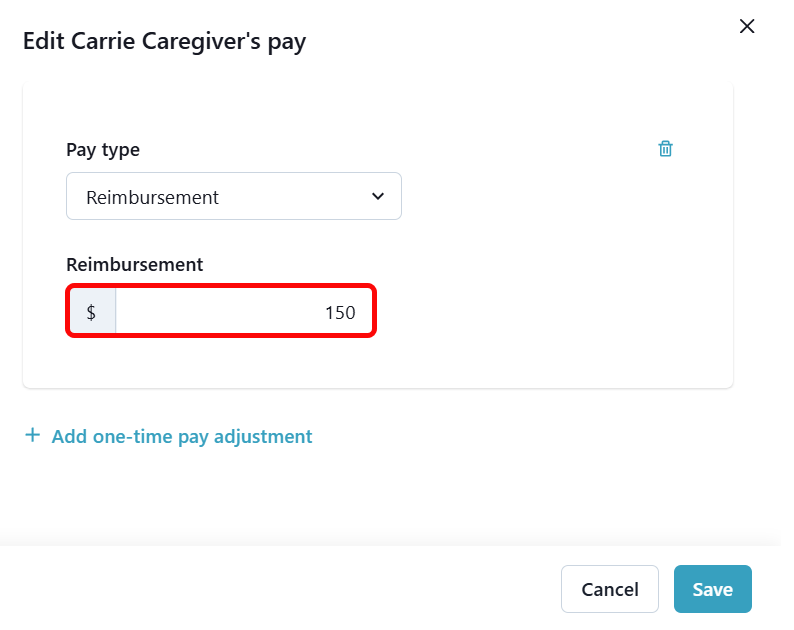
Select the pay adjustment type from the Pay type dropdown.
-
Enter the pay adjustment amount in the field(s) that appear.
-
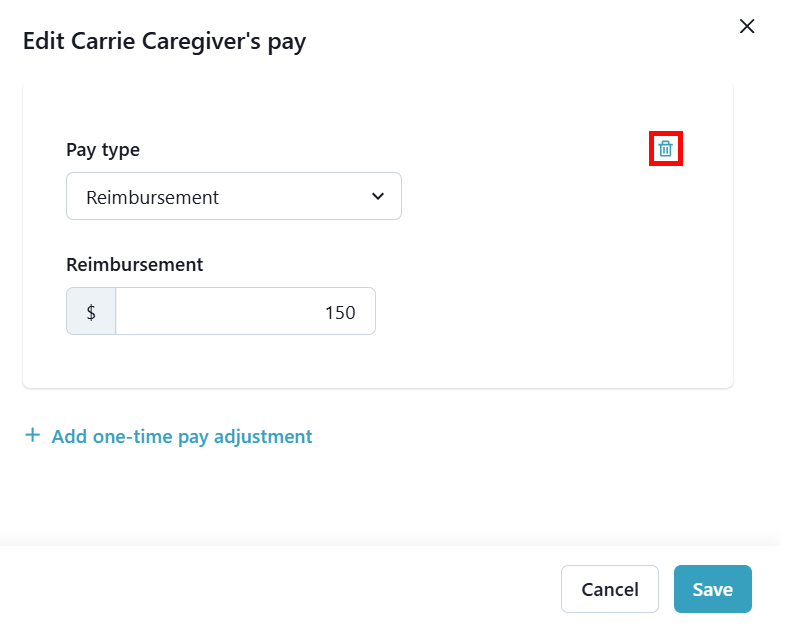
To remove a pay adjustment, click the trash can icon.
-
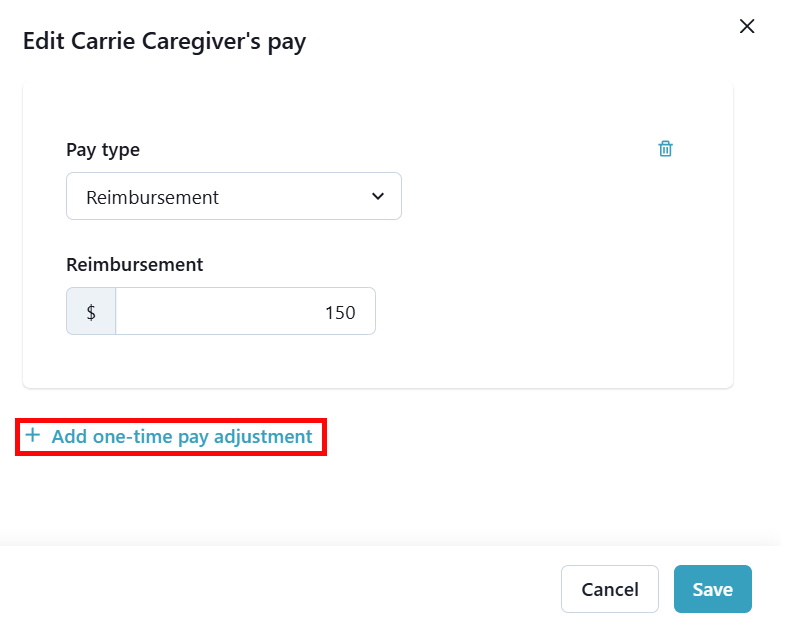
To add another pay adjustment, click + Add one-time pay adjustment again.
-
When finished, click Save.
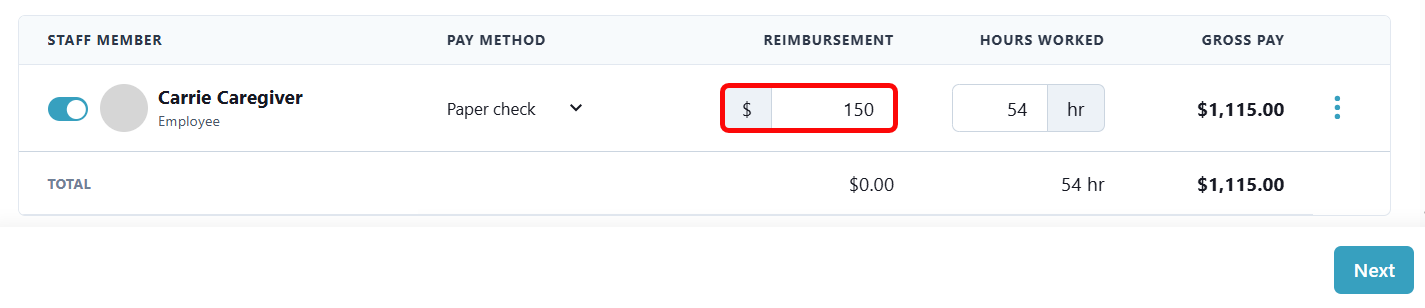
The Pay Adjustment now appears in the Employee's row of the staff table.
-
Click Next to continue with the rest of the payroll run.
Manage Time Off
To add time off hours to your Employee's payroll:
-
Select the Ellipsis to the right of an Employee's Gross Pay and select Manage time off.
-
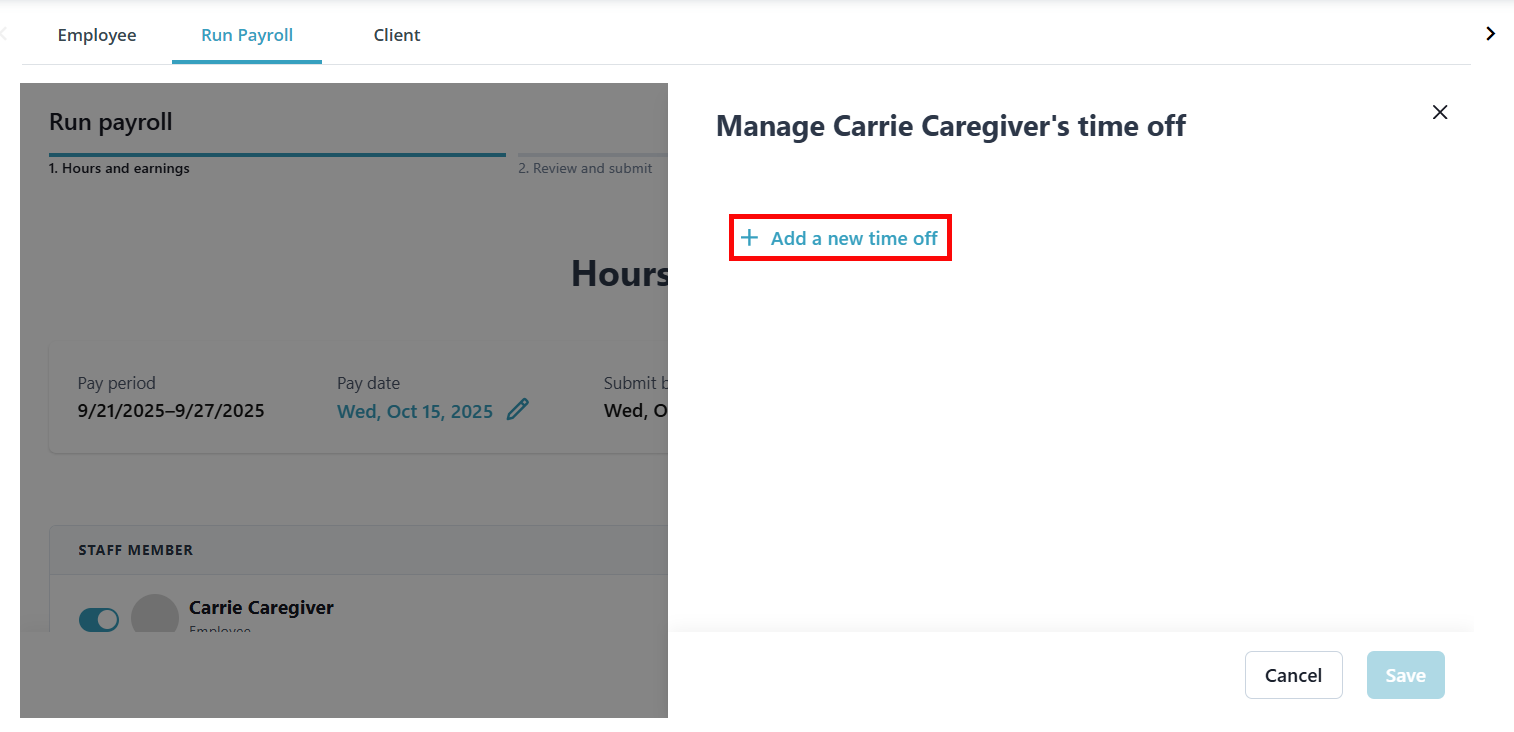
A side panel opens. Click + Add a new time off.
-
Select the Time off type from the dropdown and enter the Number of hours.
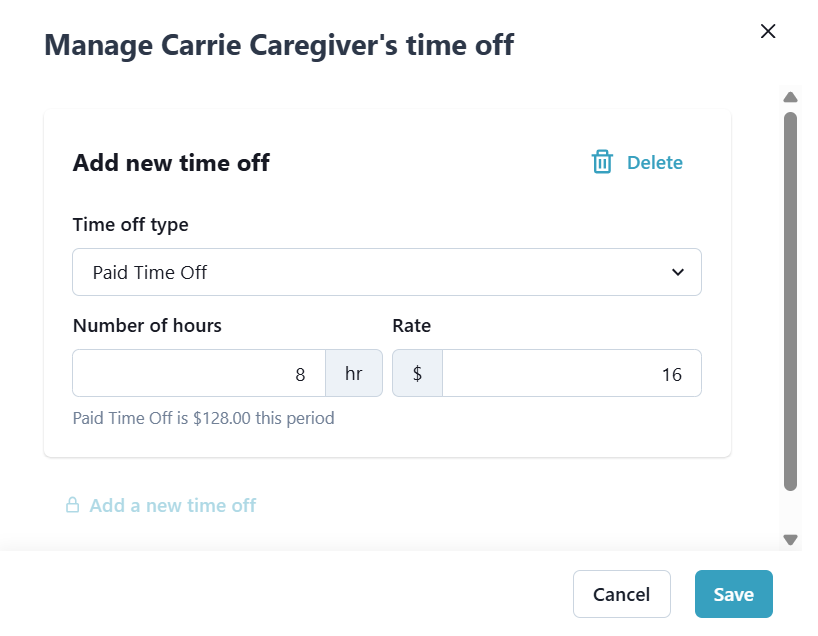
If you are adding Paid Time Off, enter or modify the Rate for calculating the pay for the time off. We compute the rate based on the Employee's salary/hourly pay, but you can override it if needed.
-
Click Save.
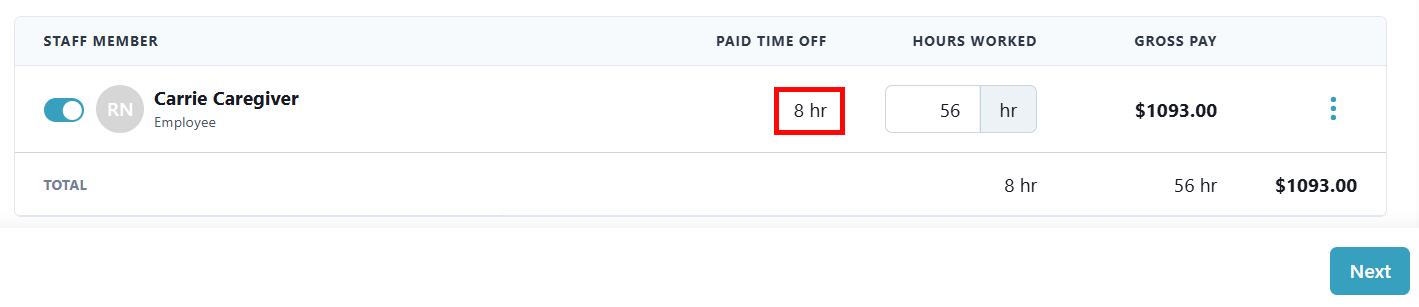
The Paid Time Off now appears in the Employee's row of the staff table.
-
Click Next to continue with the rest of the payroll run.
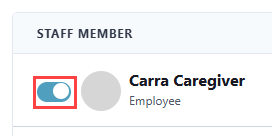
Deselect an Employee that is not being paid this payroll period by selecting the toggle to the left of their name.
-
-
When finished reviewing, select the Next button.
-
On the next page, a breakdown of each Employee's Gross Pay, Worker Taxes & Deductions, Net Pay, Company Taxes & Contributions, and Total Payroll are displayed.
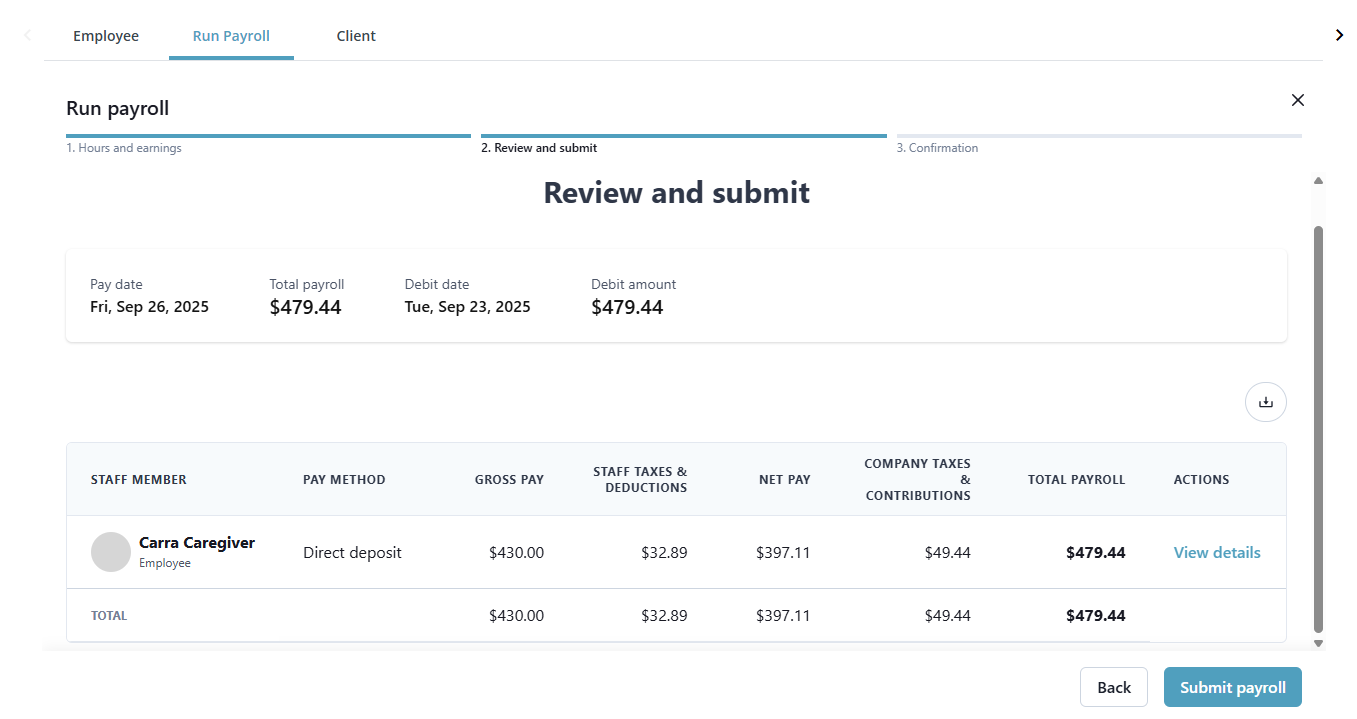
Click on View details under the Actions column to view the pay stub for the Employee.

You can then print the pay stub by selecting the Print earnings statement button.
-
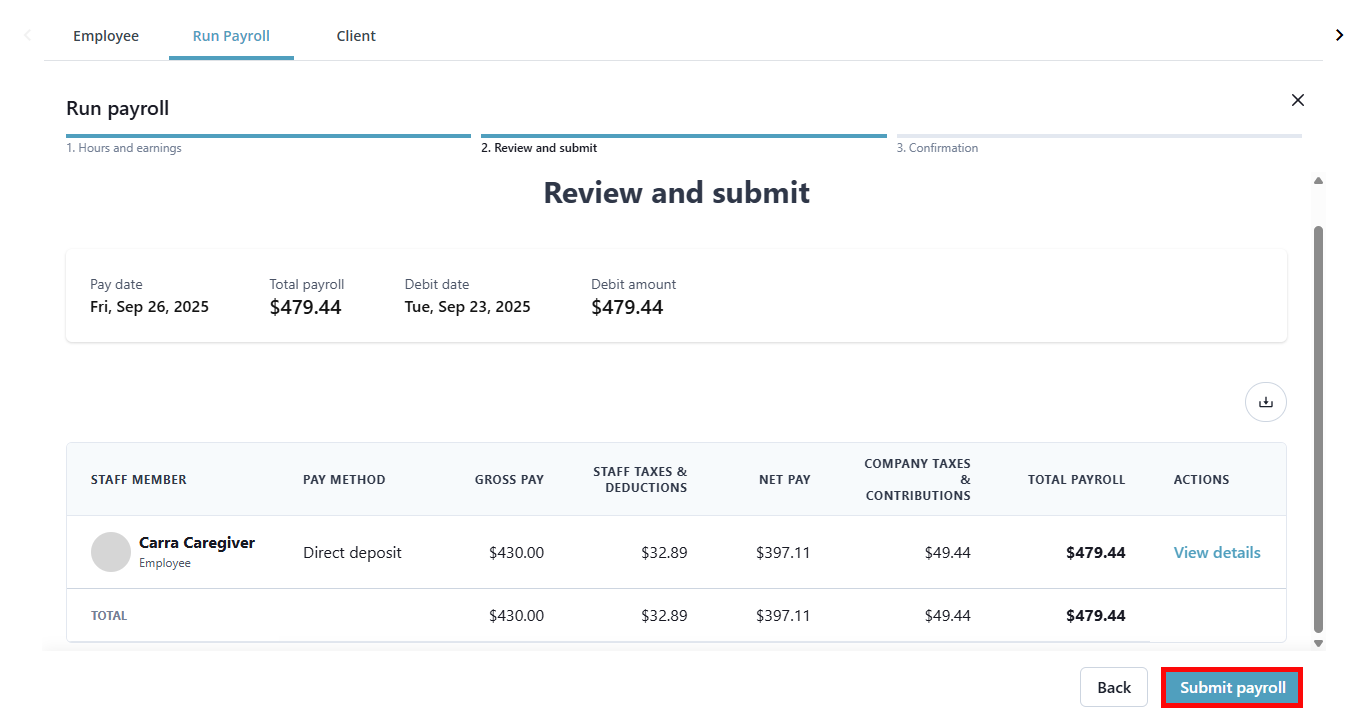
When finished reviewing, select the Submit payroll button.
-
The confirmation screen shows that payroll has been submitted.
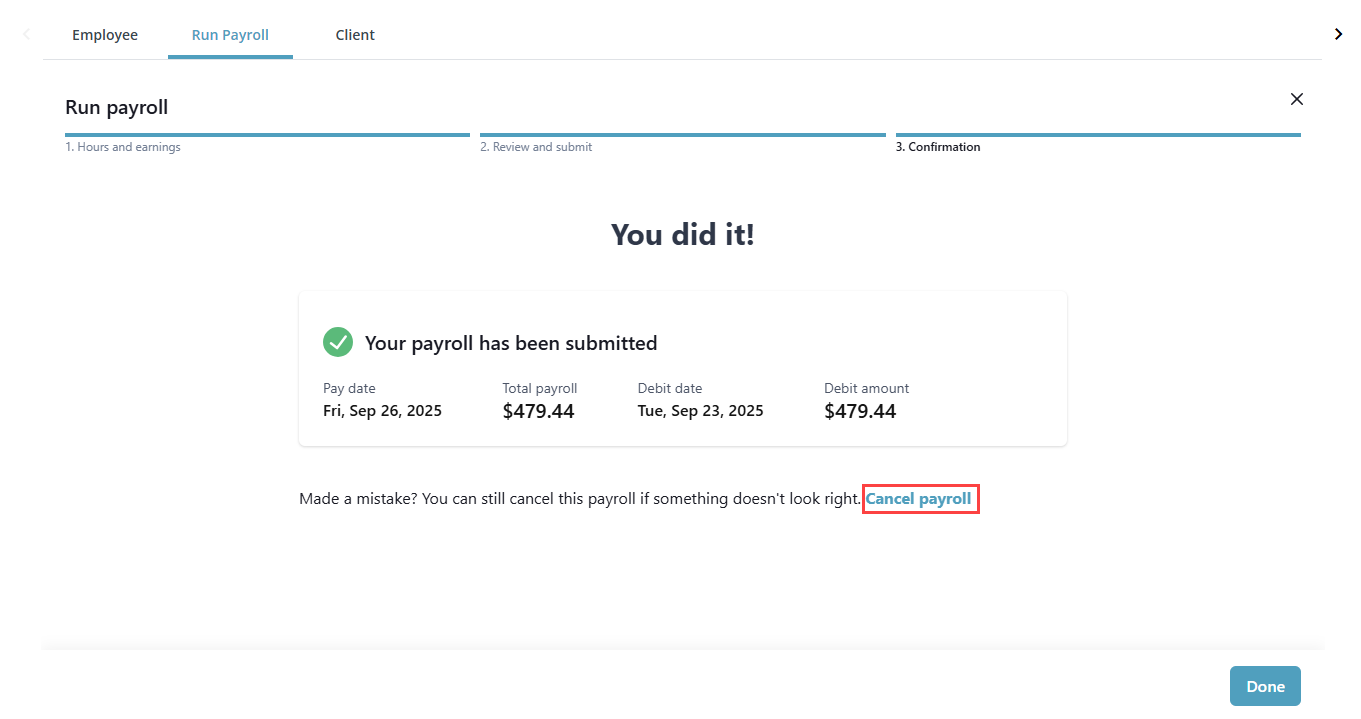
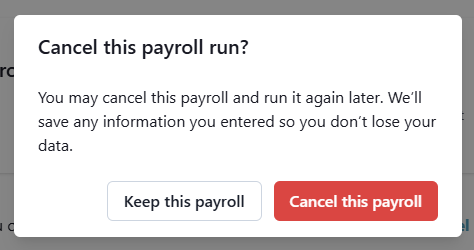
If you need to go back and correct something, click the Cancel payroll link.
In the pop-up window, click Cancel this payroll.
-
Once you have submitted payroll, it appears in the Payroll Run List at the bottom of the Run Payroll page.
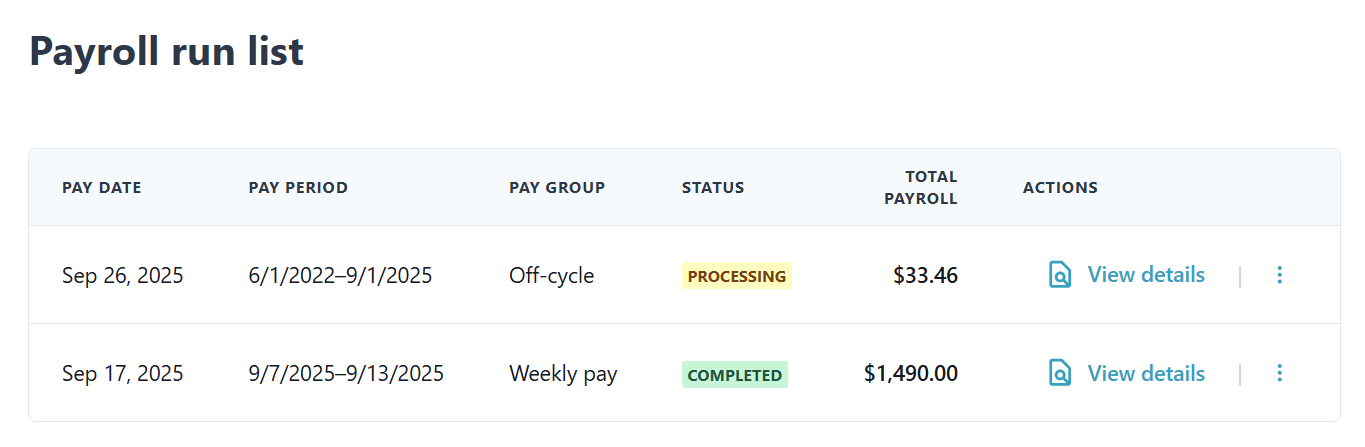
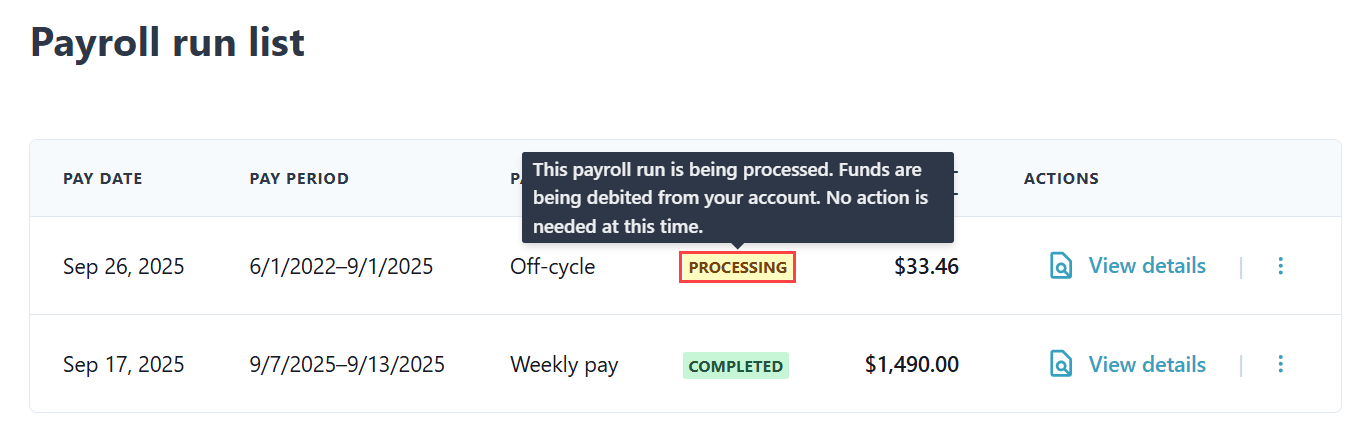
Hover over the Status to see an explanation of your payroll status.
During each payroll run, remember to manually enter any mileage, in-service, and other expense reimbursements. These items are not automatically included, so you need to add them for each applicable worker before finalizing payroll.