Payroll Setup Needed Notification
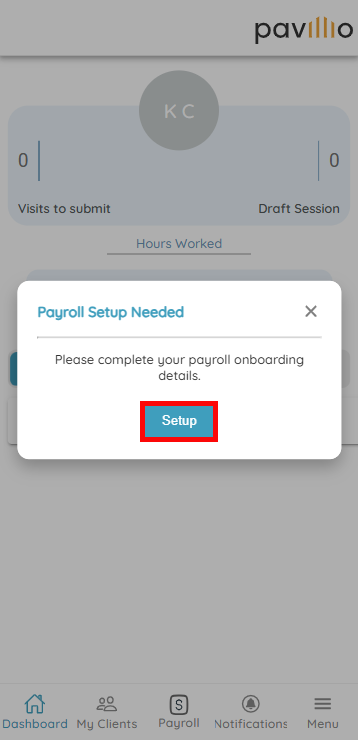
Your Agency may need you to enter your payroll and tax information directly in the Pavillio Mobile App. If this is the case, a pop-up notification appears:
-
Tap the Setup button to begin the process.
-
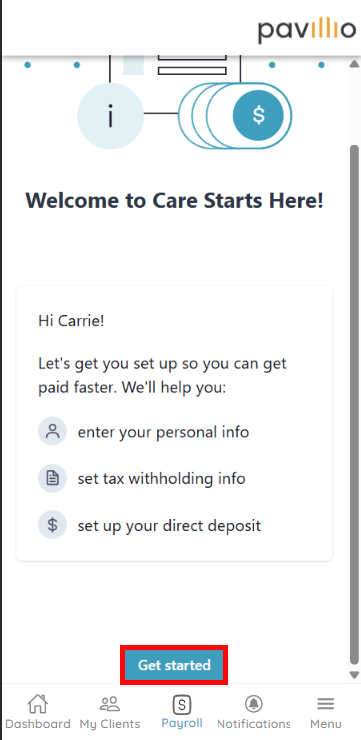
Tap the Get started button.
-
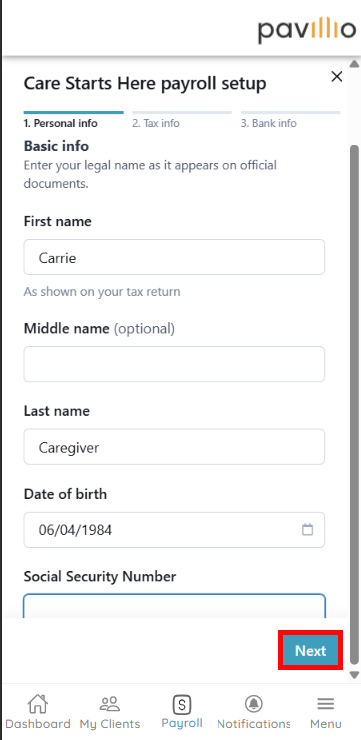
On the following screen, enter your personal information, and then tap the Next button.
-
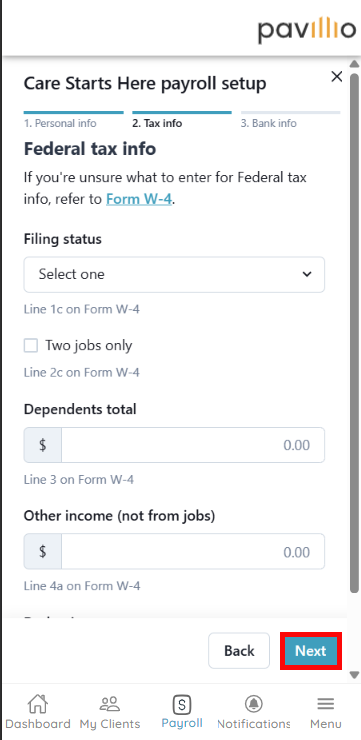
On the following screen, enter your tax information, and then tap the Next button.
-
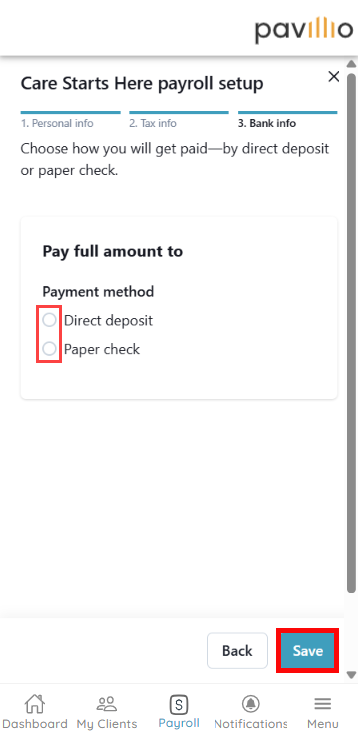
On the following screen, select whether you would like to receive your pay via Direct deposit or Paper check. Selecting Direct deposit prompts you to enter your bank account details.
-
Tap the Save button.
-
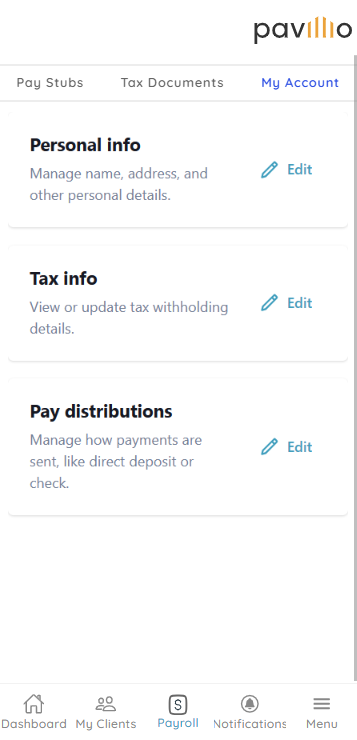
You can update your Personal info, Tax info and Pay distributions at any time from the Payroll screen.