Split a Direct Deposit Between Bank Accounts
Some workers being paid through Pavillio Payroll may want to split their direct deposits between multiple bank accounts. This can be done with direct deposits, not with paper checks.
To split a direct deposit between bank accounts:
-
-
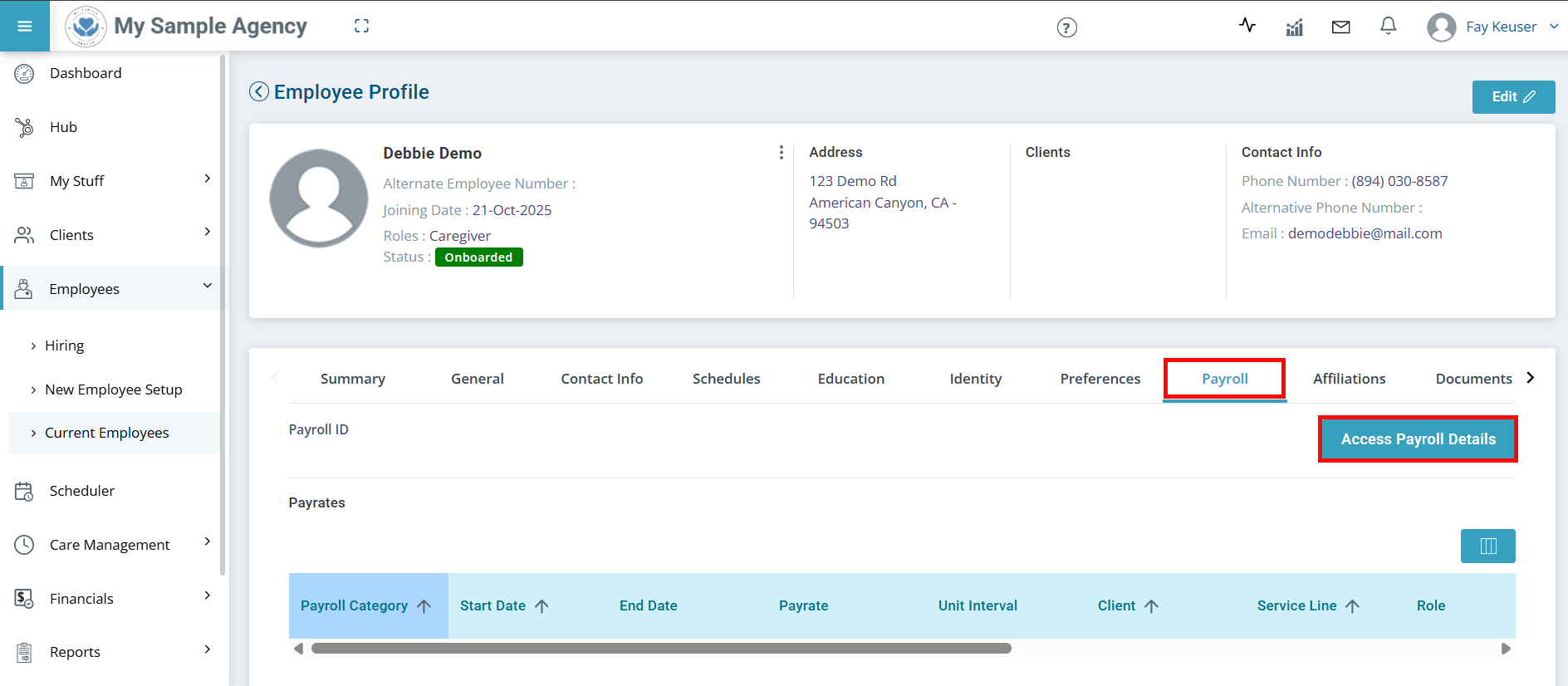
-
The Payroll Details panel opens. Find the Payment methods section and click Edit.
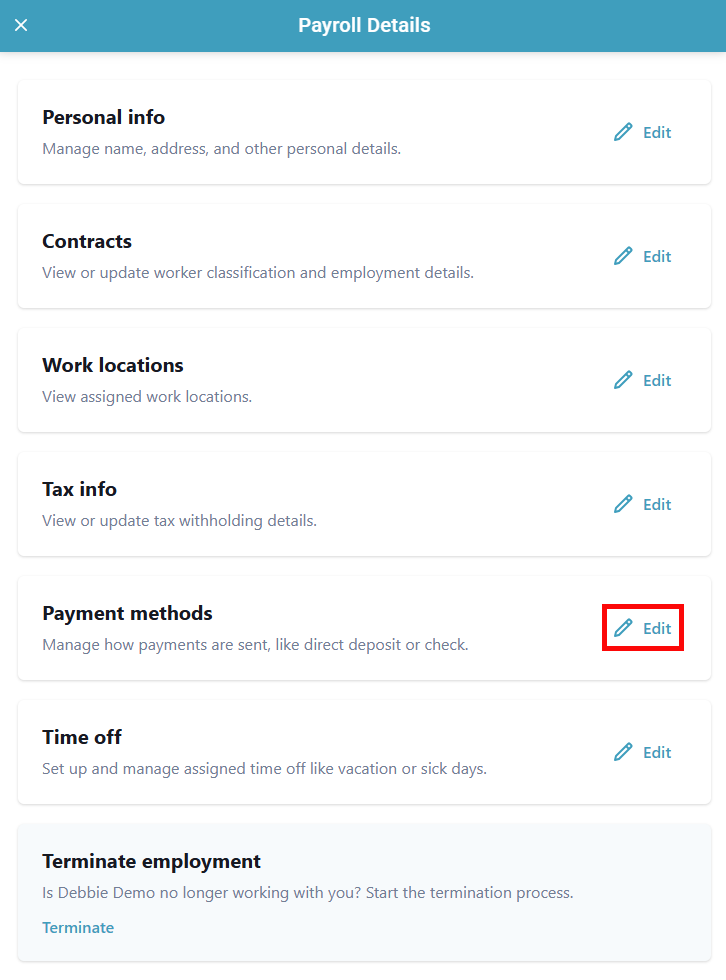
-
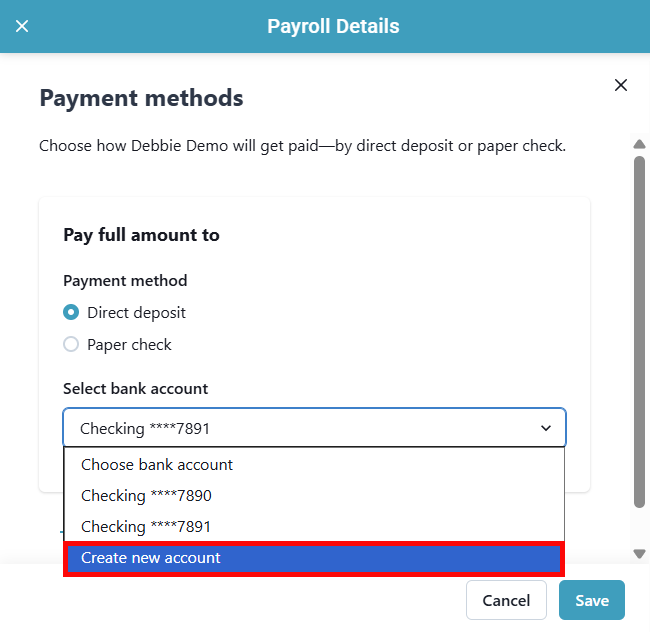
Make sure you have selected Direct deposit and have at least 2 bank accounts on file. You can add another bank account by clicking the Select bank account dropdown and selecting Create new account.
-
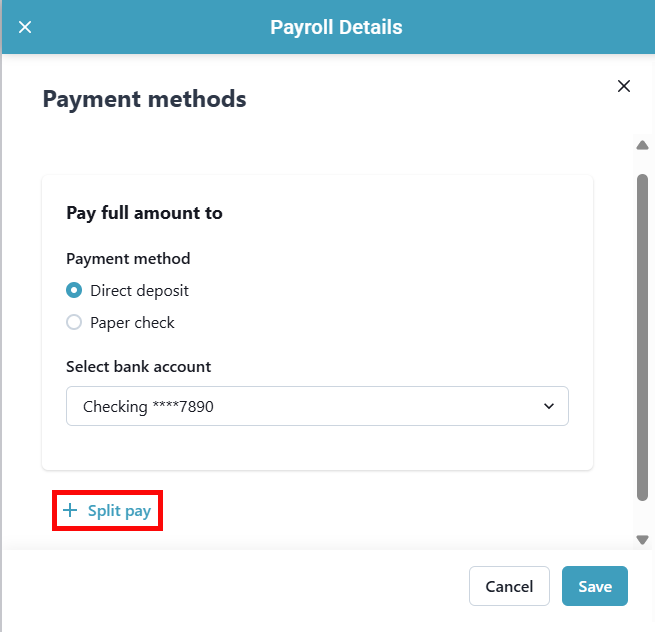
Click on + Split pay.
-
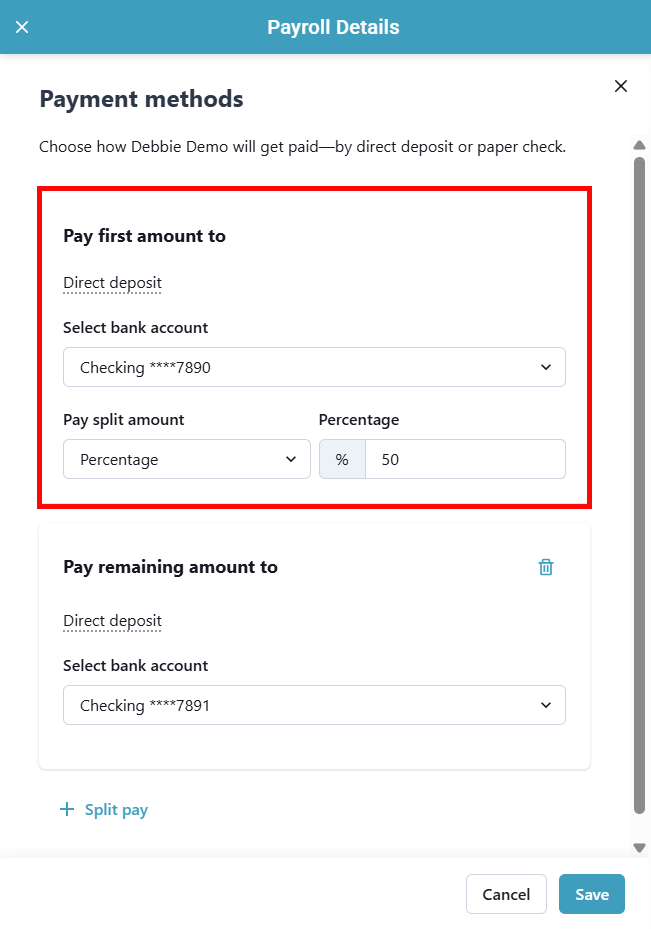
Select whether the worker would like to have a Fixed amount or a Percentage of their paycheck deposited into the first bank account. Enter the dollar amount or percentage in the appropriate field.
Percentage splits are based on net income (take-home pay), not gross income.
-
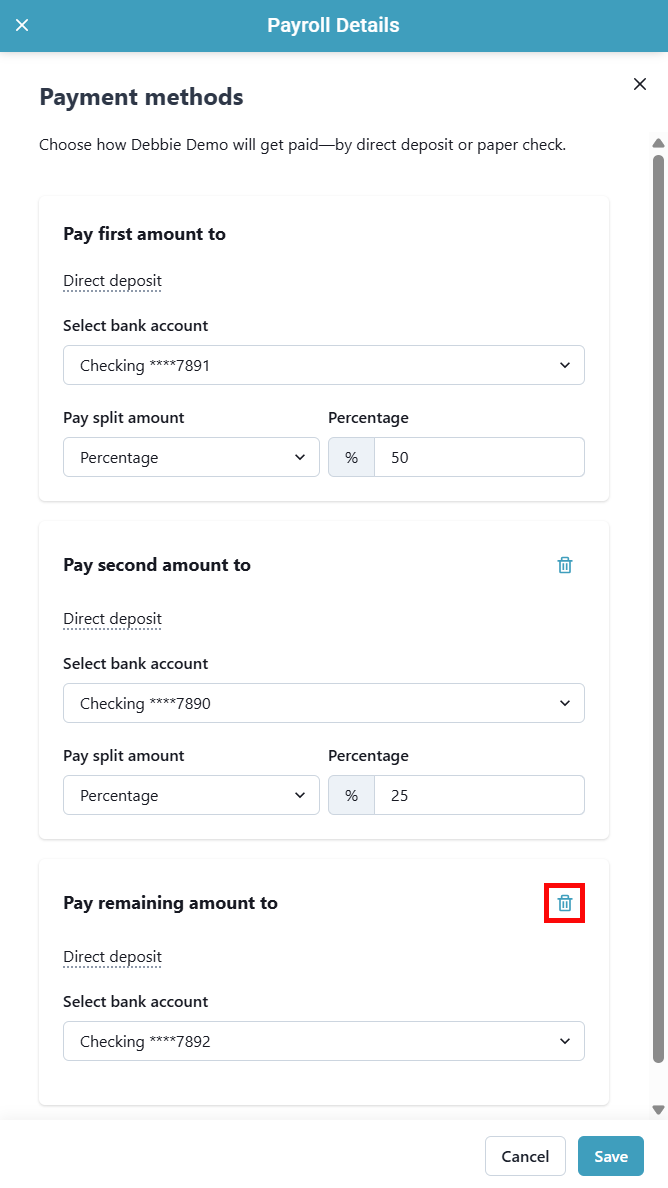
Optional: You can split a direct deposit between up to 3 bank accounts. To add a third bank account, click + Split pay again and enter the next Fixed amount or Percentage. The account listed last will receive the remainder (if applicable).
To remove a bank account from the split, click the trash can icon.
-
Click Save.
If one bank account has an error, only that account is affected. The rest of the paycheck will still go to the other bank accounts as set up.