Onboard an Employee for Pavillio Payroll
This topic reviews how to onboard a worker for Pavillio Payroll. This step must be done in addition to onboarding an employee in the Pavillio System.
-
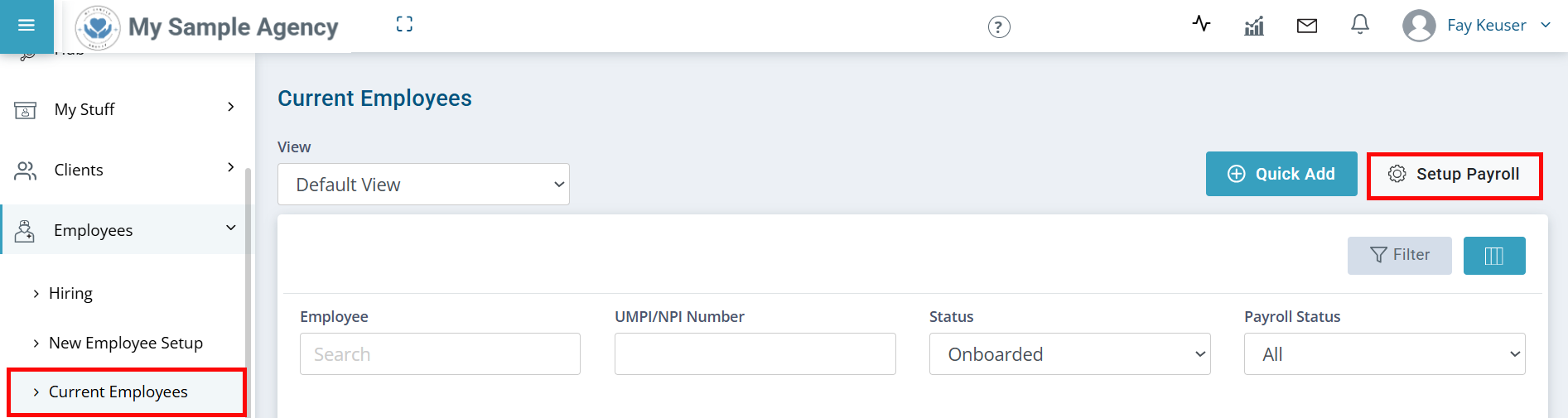
-
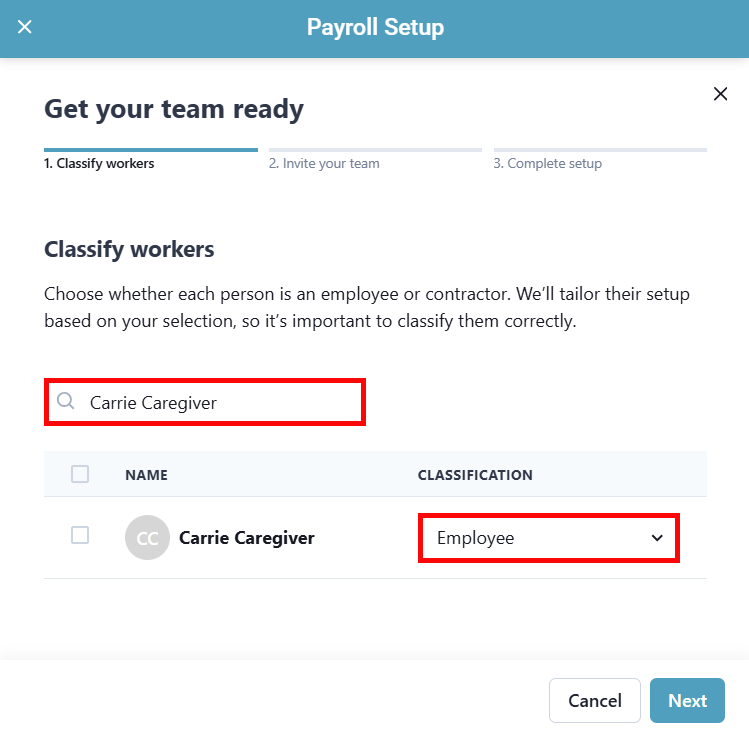
The Payroll Setup panel opens. To search for a specific employee, enter the worker's name in the Find a worker search field.
-
Under the CLASSIFICATION column, select either Employee or Contractor from the dropdown.
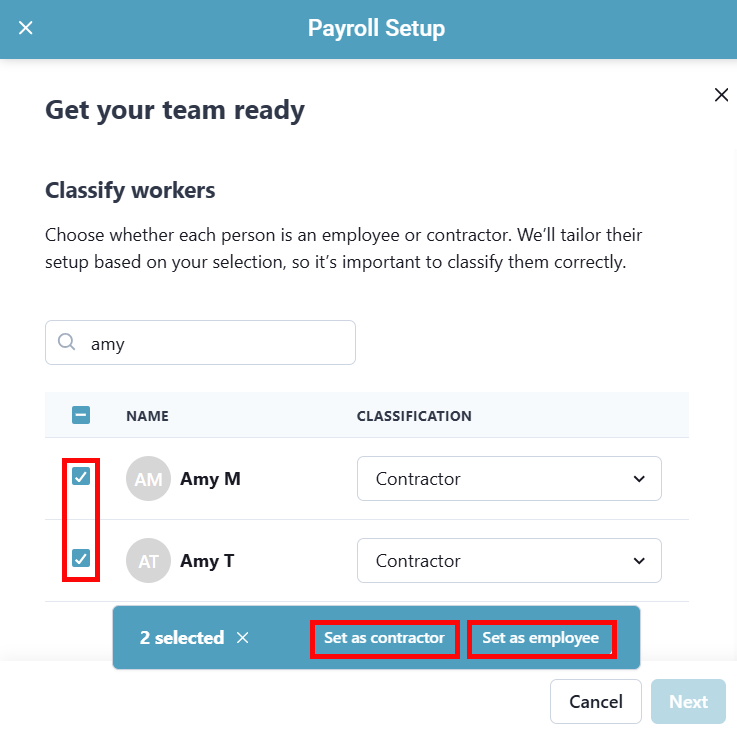
When onboarding multiple workers at a time, select the checkboxes next to their names, and then select Set as contractor or Set as employee.
-
Click Next.
-
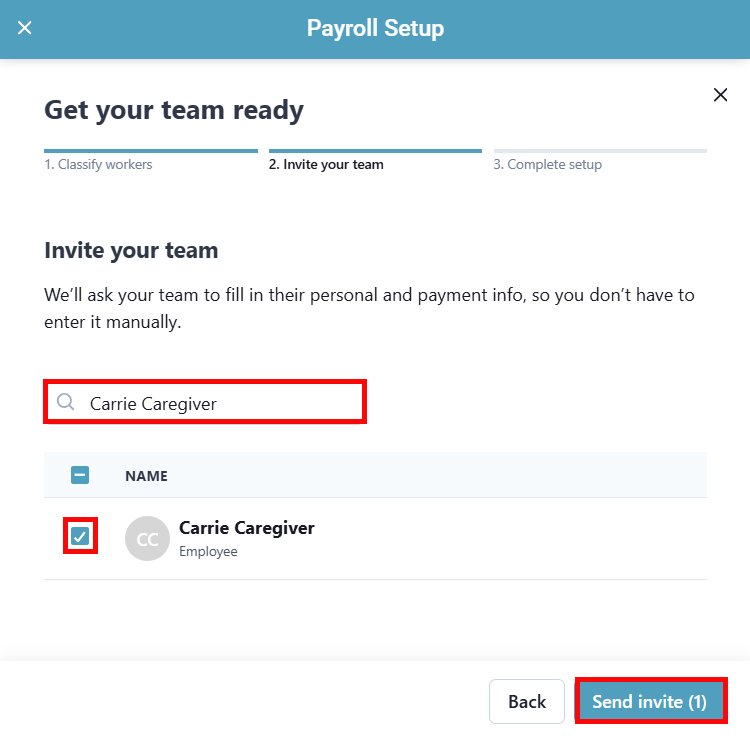
It's time to invite your workers to fill in their personal and payment information. Select the checkbox next to NAME to select all workers.
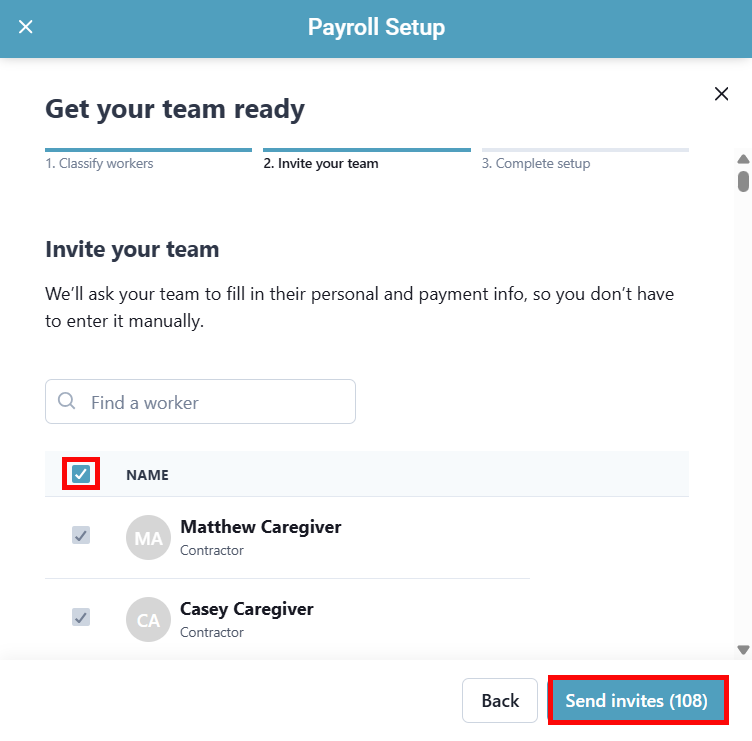
You can also search for a specific employee by typing their name into the Find a worker search field and ticking the checkbox next to their name.
-
Click Send invite(s).
-
The final screen of the Payroll Setup workflow contains a list of all workers and their respective onboarding statuses.
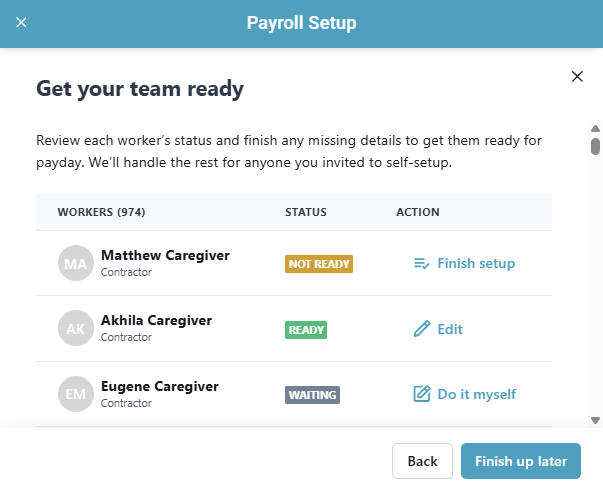
Each status has a different corresponding action:
-
Status: Not Ready. This means the worker is missing a pay group.
Click on Finish setup.
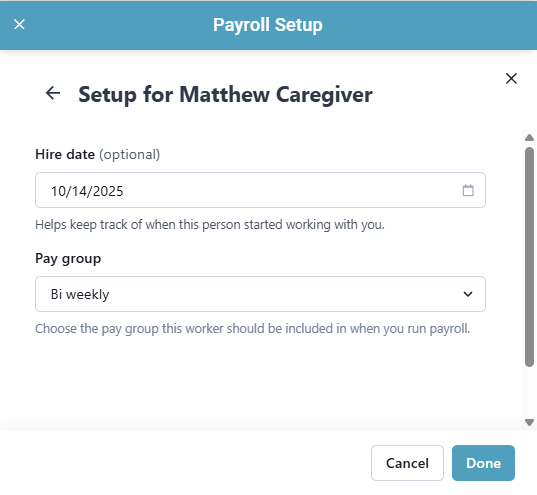
Select the Hire date (optional) and Pay group. Click Done.
This will move the worker into the Waiting Status.
-
Status: Waiting. This means the worker hasn't filled out their personal and payment information yet. You can choose to give them more time to do so, or you can help the employee fill out the information.
To fill out the information together with the employee, click on Do it myself.
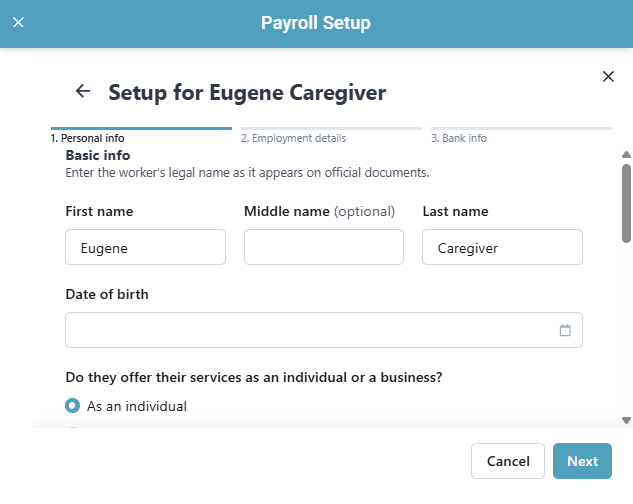
Click through the workflow and fill out the Personal Info, Employment Details, and Bank Info.
-
Status: Ready. This means the worker has filled out all of their required information and is ready for payroll.
If necessary, you can click on Edit to make adjustments.
-
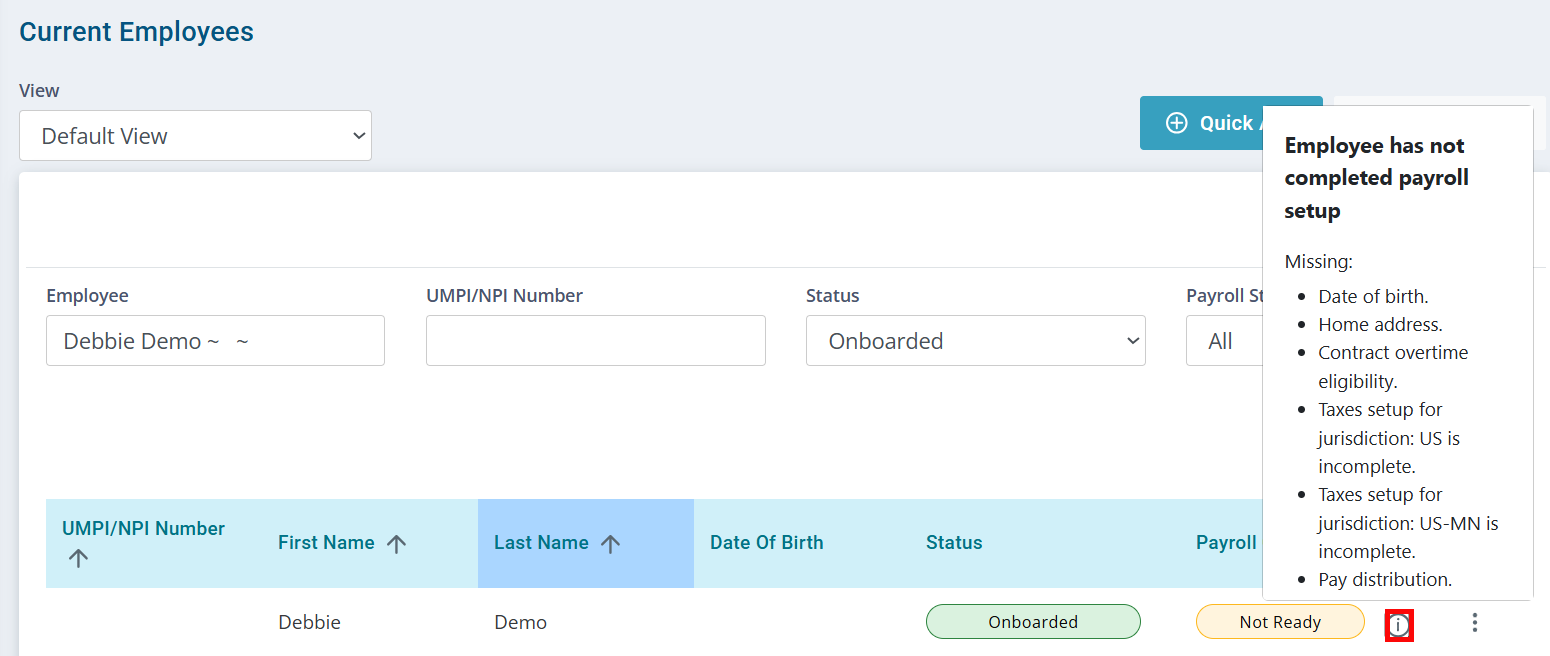
At any point, you can go to the Current Employees page and click the information icon under the Payroll Onboarding Status column to see what steps an Employee is missing from their payroll onboarding.
Other Resources