Migrate Your Payroll from Rippling
We’re excited to be your new payroll provider! Since you’ve already paid employees earlier this year through another provider, we’ll need some details from your previous payroll records. Importing this information helps ensure that all tax payments and reports stay accurate.
You can keep your account with your previous payroll provider active while the payroll data is being transferred into our system. This ensures you can continue to download reports or if necessary, run an additional payroll.
To provide us with your payroll data, download a report from your payroll provider and attach it to a
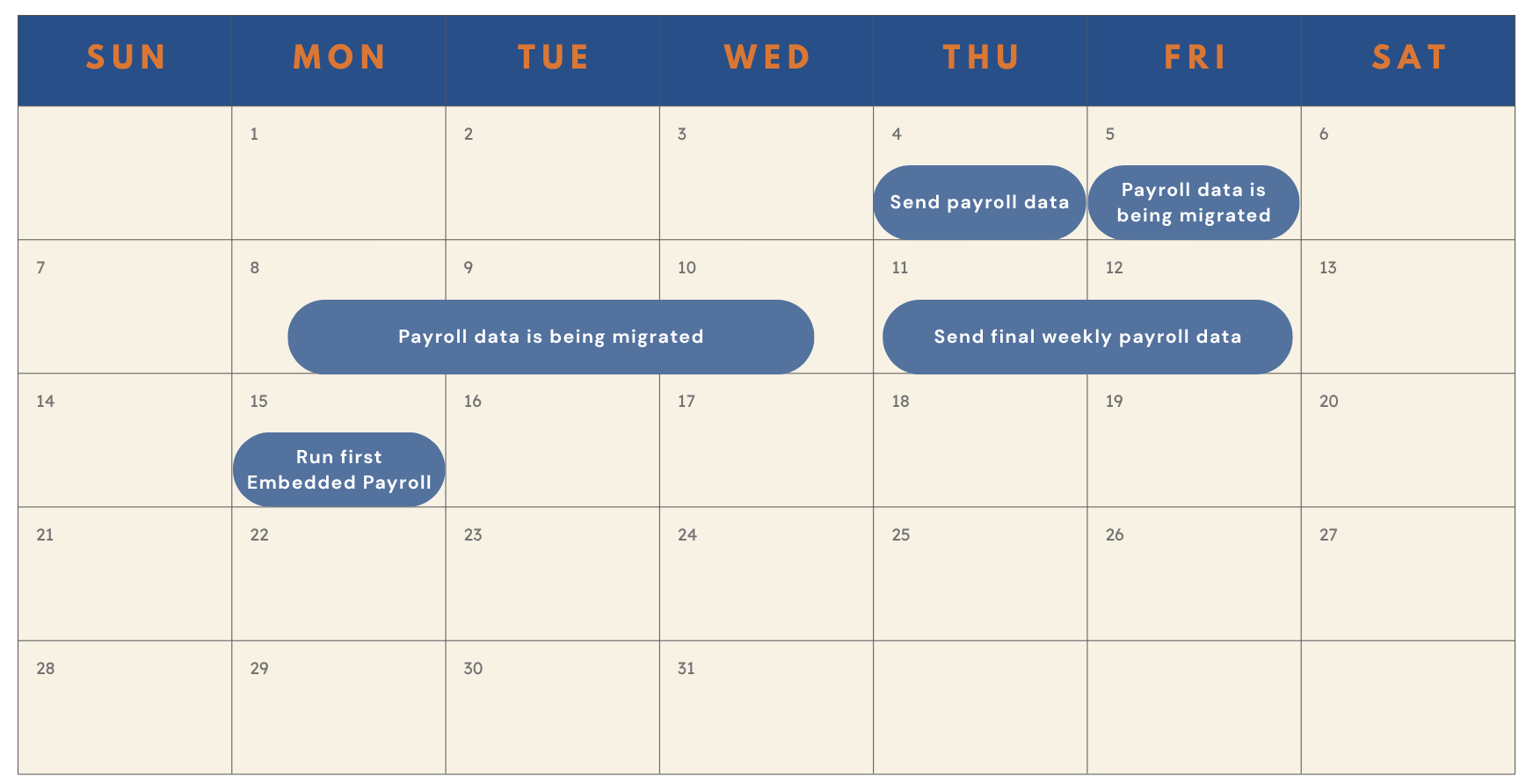
For employers who have a weekly pay group:
-
Submit Initial Data: Send us all the data you have accumulated so far for the calendar year. This enables us to start the implementation process on our end.
-
Provide Final Payroll Run Data: Share the data from the final weekly payroll run with us.
Example Timeline:
Let’s say you run payroll every Monday for a Friday check date. Send us all payroll information except for the current week’s payroll so we can start the migration process. After you run your final payroll, send us the payroll journal by Friday. This allows us to finish migrating your data so you’re ready to run your first payroll the following week.
If you are onboarding in the middle of a quarter, you'll need to generate a report for each past payroll run in the current quarter along with reports showing year-to-date totals for each closed quarter.
For example, when joining with a first payroll date of 8/30 and having processed payroll during Q3 with check dates of 7/15, 7/31, and 8/15, we'll need the following report for each of those check dates in Q3, as well as a report for Q1 totals and Q2 totals.
To find the report in Rippling:
-
Sign in to Rippling Payroll
-
Open the Finance sidebar > Payroll app.
-
Select the Reports tab.
-
Click the eye icon next to the Journal Report.
-
On the next page, choose the period for which you want to run the report and click Apply.
-
Choose the dimension for viewing the data — by company cash requirements, department, or employee/contractor. You need to provide us with data for all workers per pay period.
Employee Type
Data We Need From You W2 Employee
-
Wages broken down by type (hourly, salary, commissions, etc)
-
Both employee and employer taxes are broken down by type.
Paystubs don’t always show employer taxes, so they may not be usable.
-
Deductions broken down by type
-
Employer contributions broken down by type
-
Pay period for each check date
-
A year-to-date report for all the payrolls run in the calendar year
-
Download this as a CSV or PDF.
1099 Contractor -
Check dates and associated pay periods
-
Payment amounts by type (service commission, tips, etc)
-
Download this as a CSV or PDF.
-
-
Click Download to obtain a CSV format view.
-
Open a