Change a 1099 Contractor to a W-2 Employee
This topic explains how to change a worker’s classification from 1099 contractor to W-2 employee. Follow the steps below to update contract details, end the 1099 status, and set up the new W-2 employment record.
-
Open the Employee Profile and click the Edit button at the top of the page.
-
Go to the Payroll tab and click the Setup Payroll button.

-
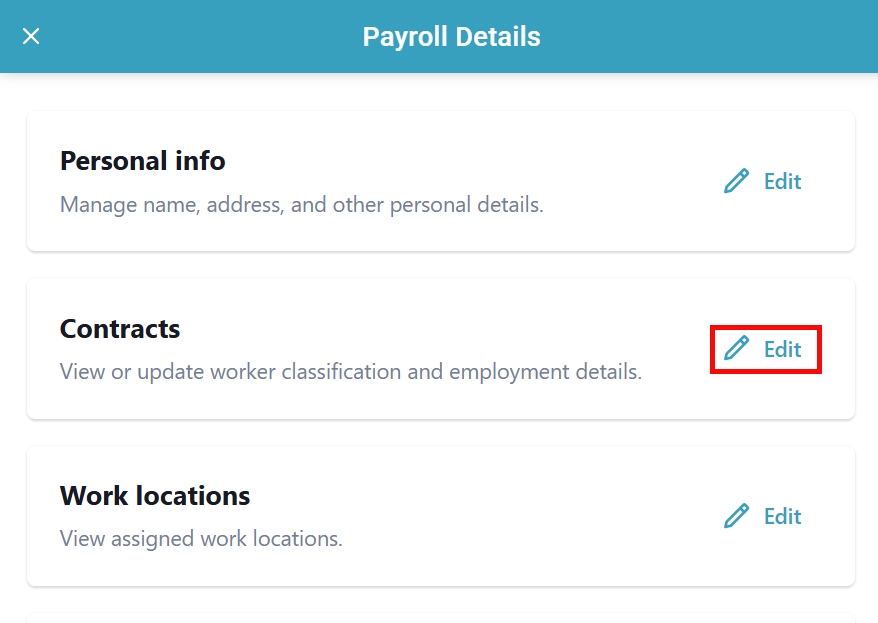
The Payroll Details panel opens. Click Edit next to Contracts.
-
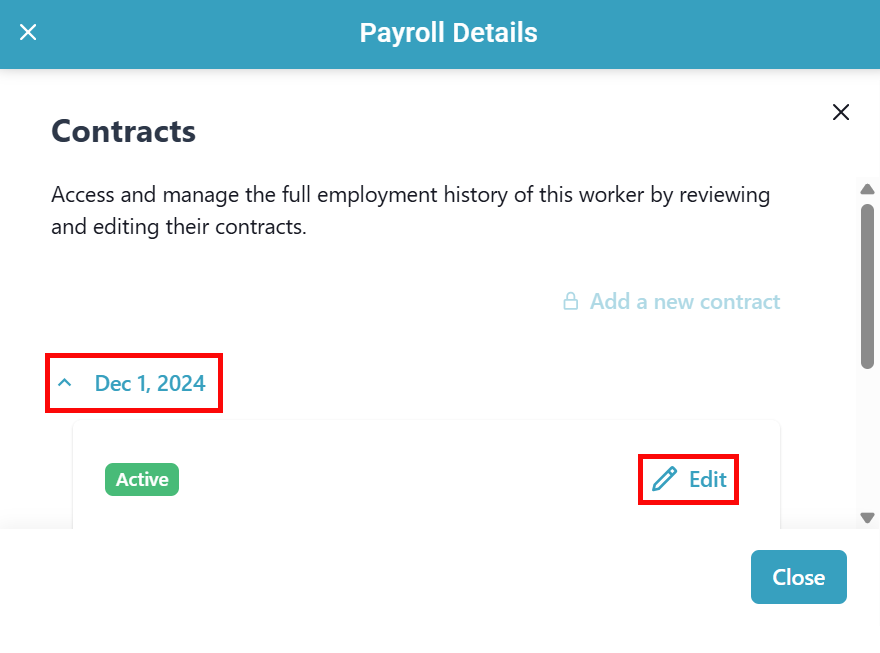
Click on the contract date you want to change, and then click Edit.
-
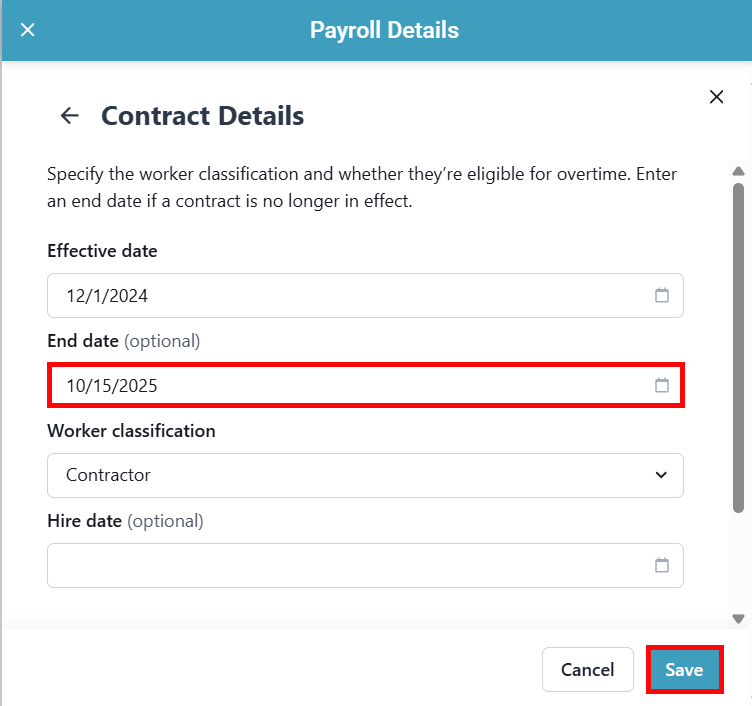
Enter the End date for the worker's 1099 status and click Save.
-
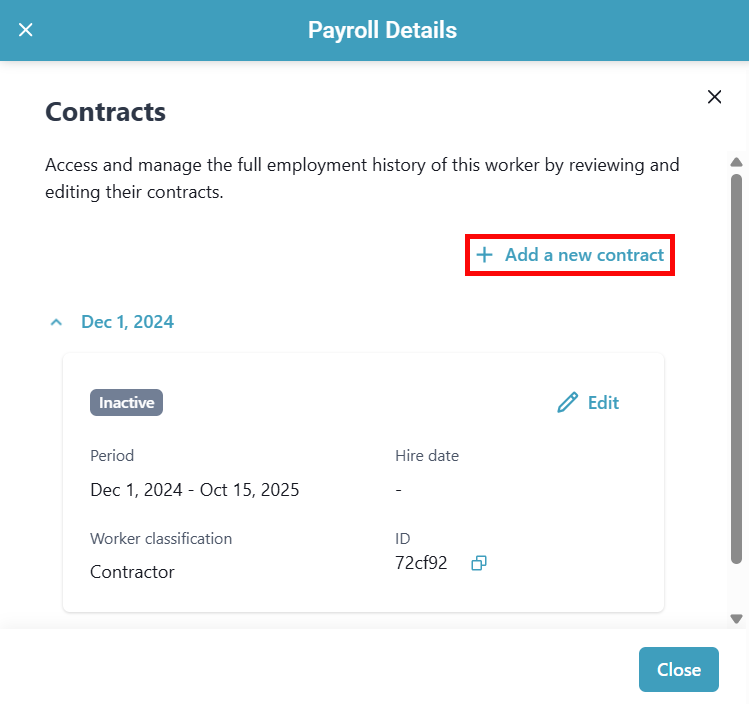
Back on the Contracts page, click + Add a new contract.
-
Enter the Effective date, select Employee as the Worker classification, and select whether they are Overtime eligible. Click Save.
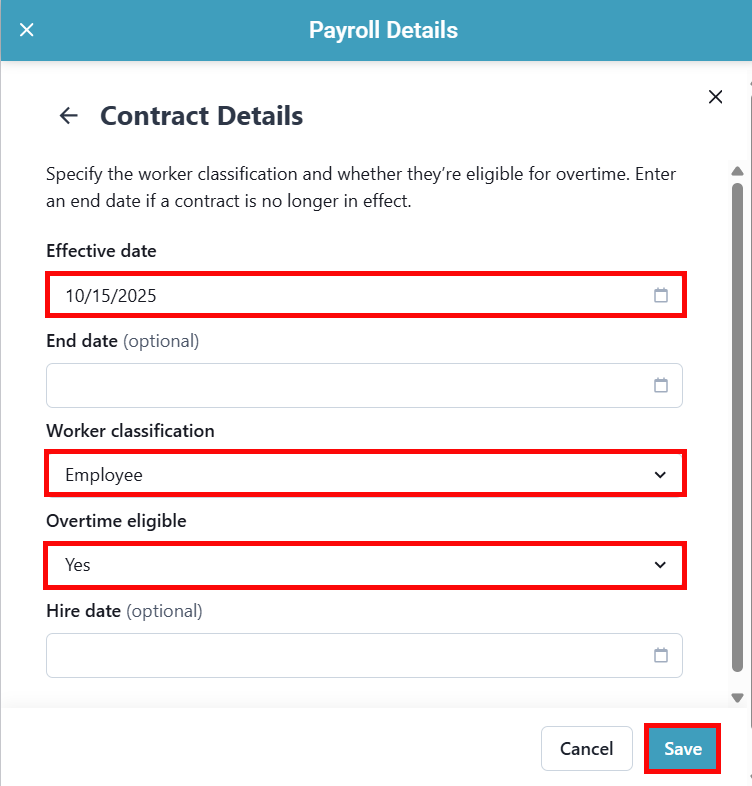
This ends the 1099 status for the employee and make them an active W-2 employee in the system.
Other Resources