Cancel a Payroll Run
This topic explains how to cancel a payroll run, make changes, and resubmit it before the processing deadline. It also covers what to do if the payroll isn’t in draft, when cancellation is unavailable, and how to request a payroll void.
Employers can cancel payroll any time before 8pm Pacific Time. Keep in mind, you need to rerun the payroll prior to the 8pm deadline to ensure direct deposits for workers process on time.
To cancel a payroll run:
-
-
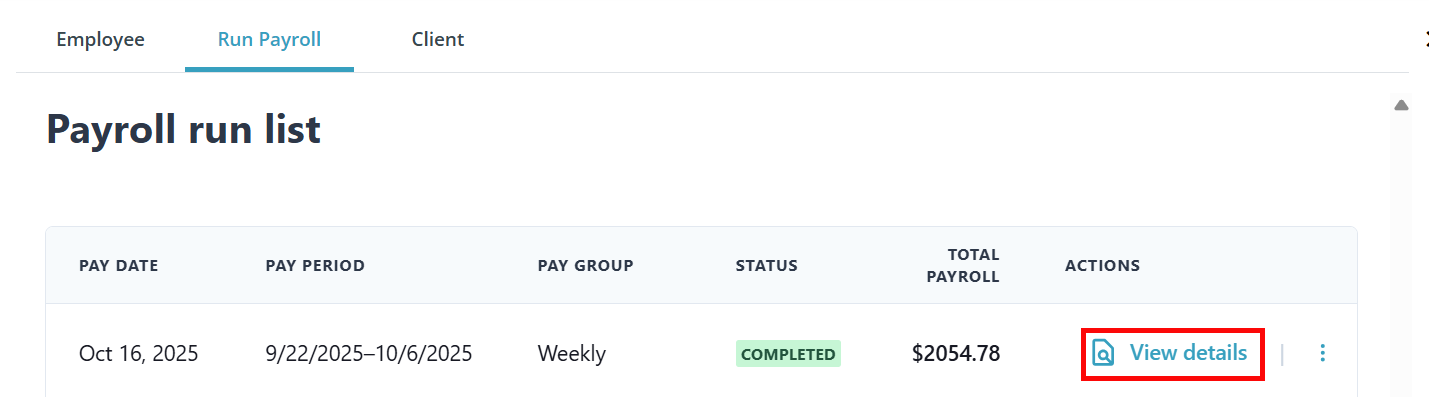
Find the payroll that needs to be canceled and select View details under the Actions column.
-
In the top right corner, select Cancel payroll.
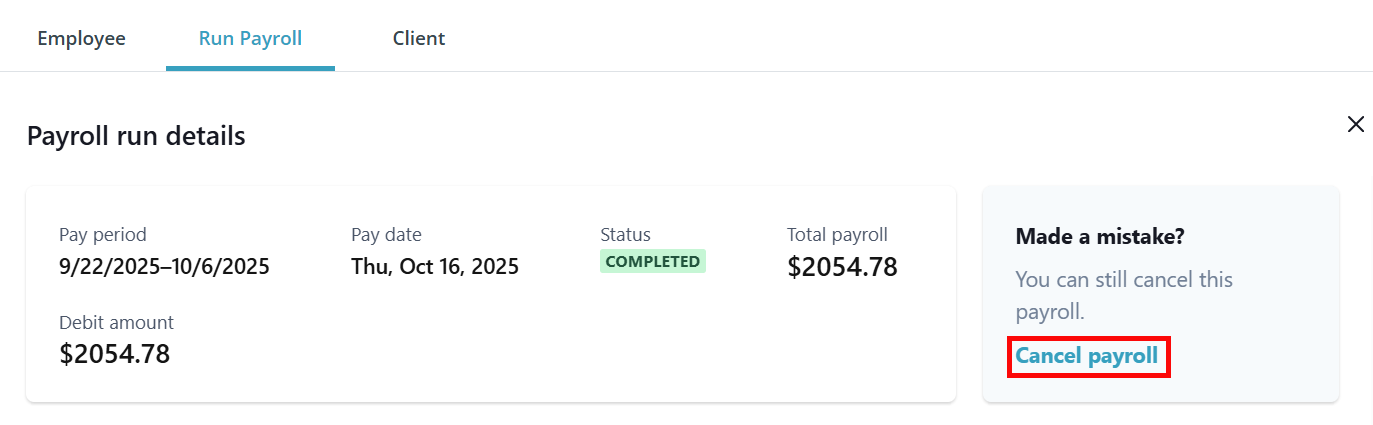
Once a payroll has started processing, employers will no longer see the option to cancel a payroll run. A payroll void can be processed by opening a
Depending on the timing of a payroll void, some taxes may have already been submitted to state or federal tax agencies and can no longer be refunded.
-
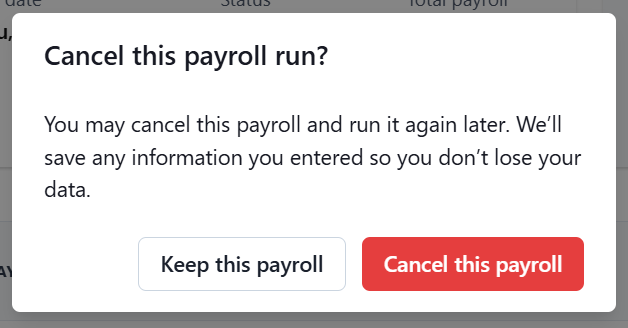
In the pop-up window, select Cancel this payroll.
-
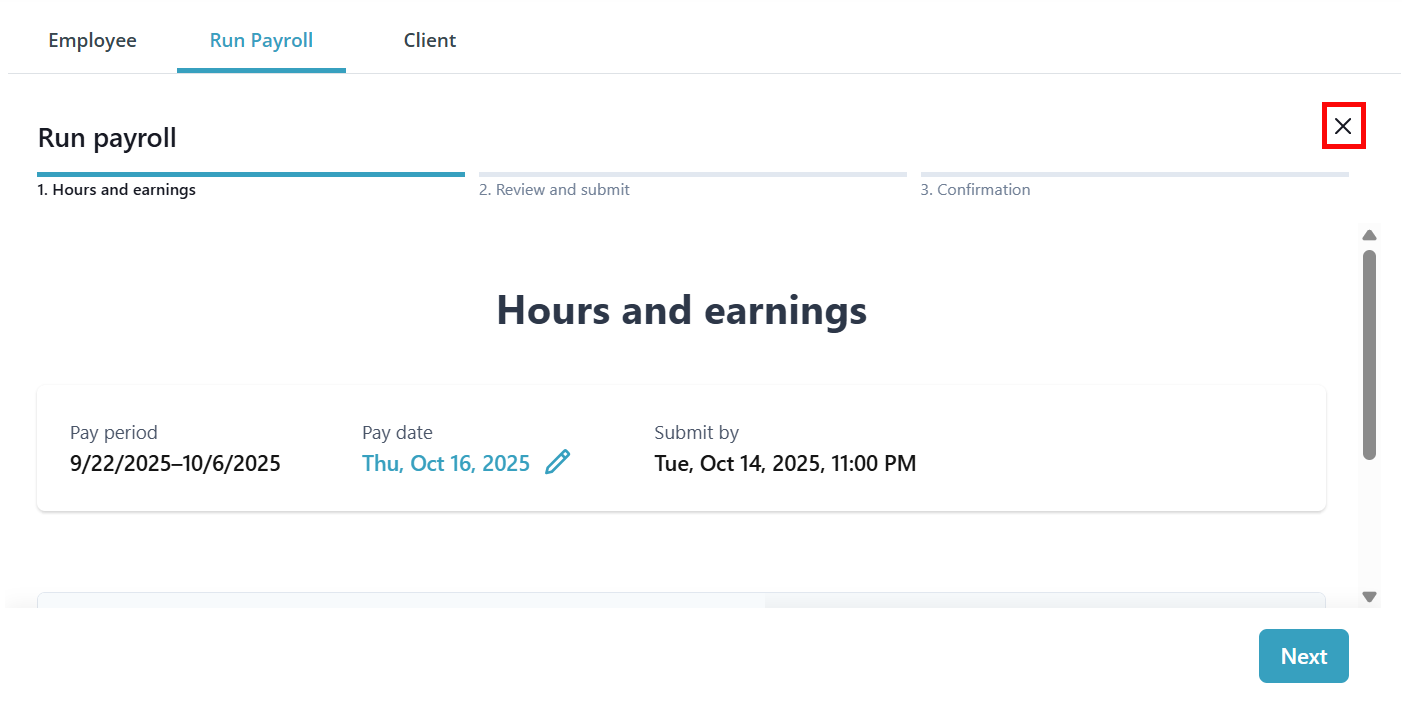
The page reverts to the Run payroll workflow page where you can edit the payroll run and resubmit it. If you would like to resubmit at a later time, click the X to go back to the Payroll run list.
-
On the Payroll page, the option to Resume appears on the payroll run.
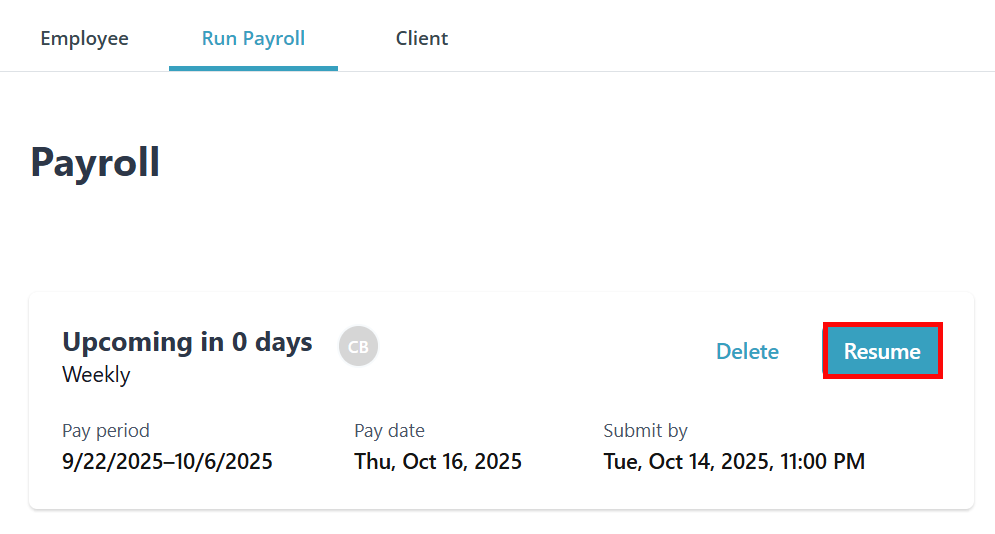
If you do not see the canceled payroll in the Payroll list, refresh the page.
-
To resubmit payroll, click Resume and follow the workflow, making any necessary adjustments.