Add Pay Groups
Pay Groups let employers group workers based on how frequently they are paid. Employers can create a pay group and select from the pay frequencies below:
|
Pay Frequency |
Pay Periods in a Year | |
|---|---|---|
| Weekly | 52 | |
| Bi-weekly (every other week) | 26 | |
| Semi-monthly (twice a month) | 24 | |
| Monthly | 12 |
To add a new pay group:
-
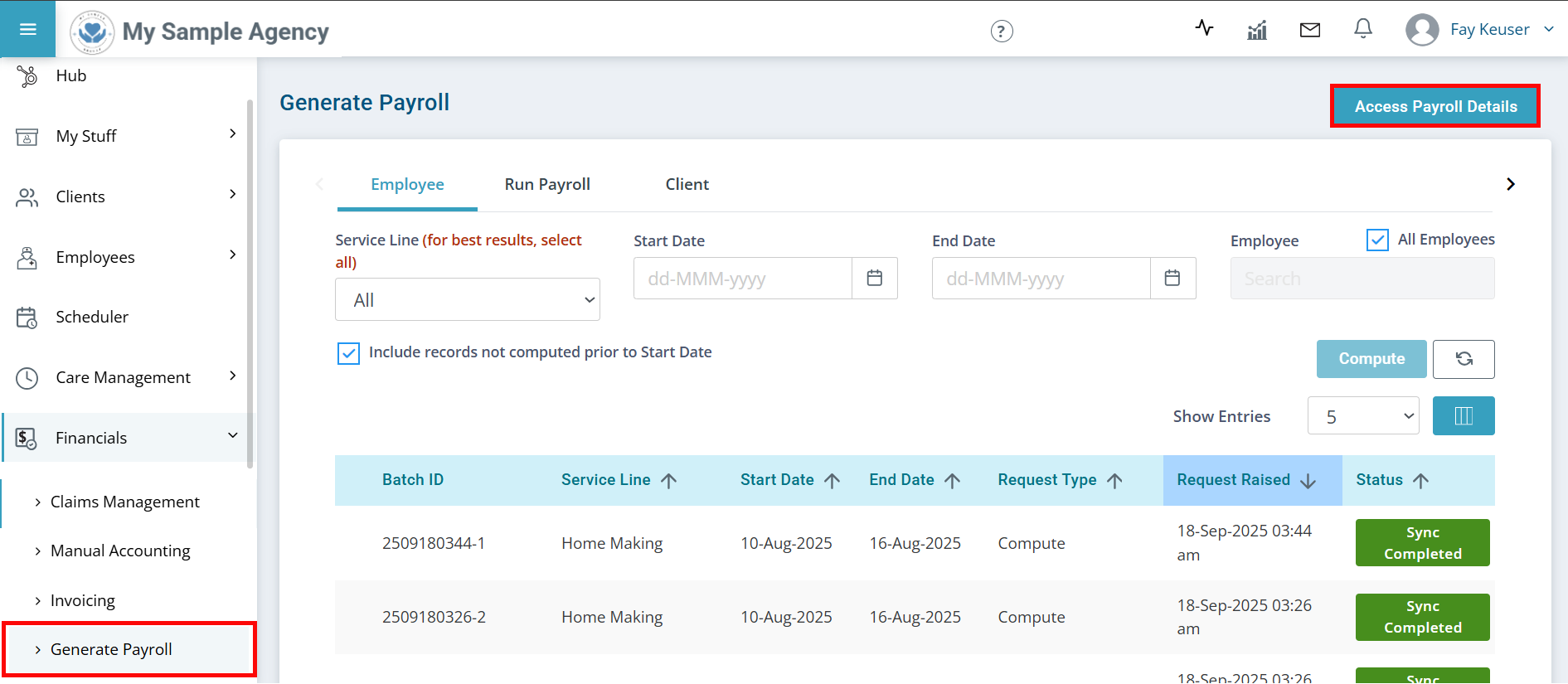
Go to Financials > Generate Payroll and click the Access Payroll Details button.
-
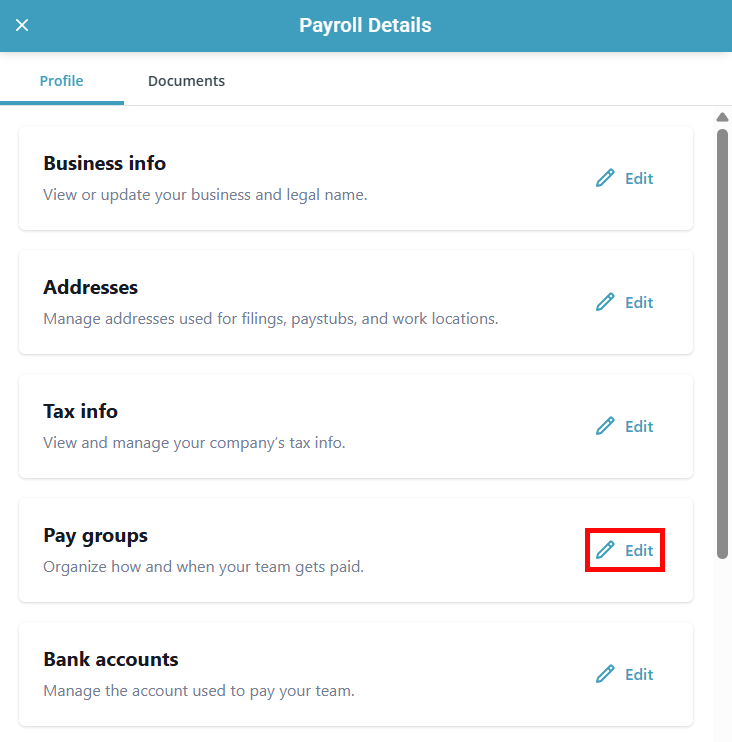
The Payroll Details panel opens. Find the Pay groups section and click the Edit button.
-
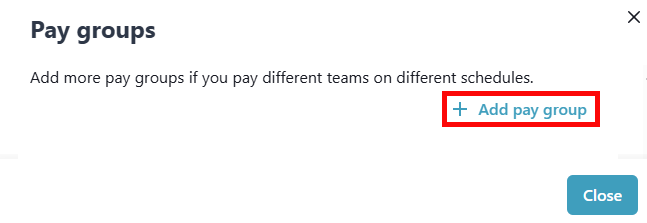
Click on + Add pay group.
-
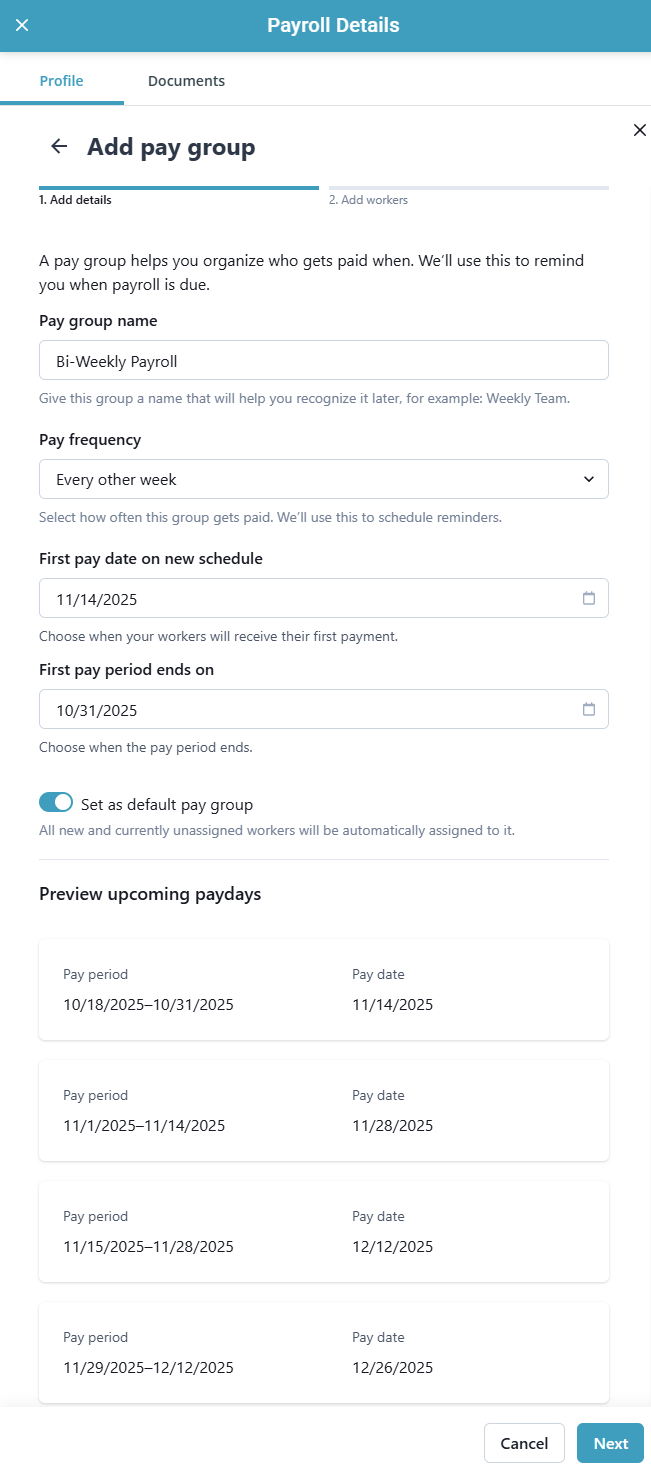
On the following screen:
-
Enter the Pay group name.
-
Select the Pay frequency.
Based on the Pay frequency chosen, additional fields populate for you to select when to pay your workers.
-
Optional: Toggle Set as default pay group. This automatically adds future hires to the pay group. Otherwise, new Employees must be manually added to the group.
-
A Preview of upcoming paydays displays based on the dates selected.
-
Click Next.
-
-
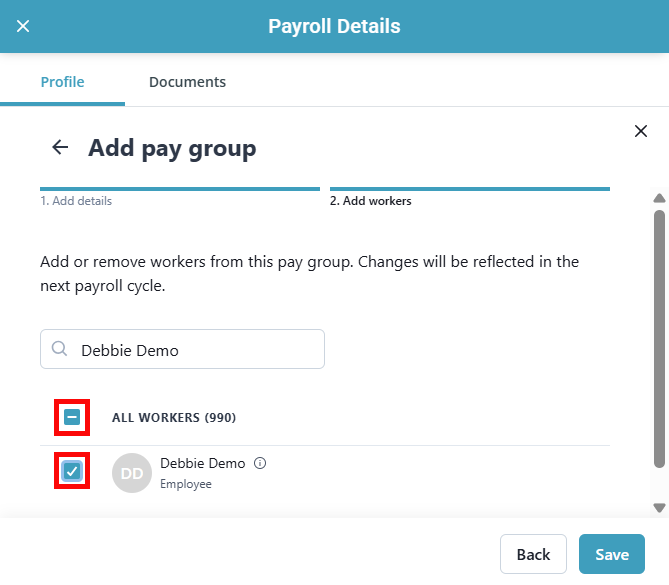
On the following screen, select the checkboxes of the workers you want to add to the Pay Group. You can use the Find a worker search box to look for a specific Employee, or select the ALL WORKERS checkbox to select all Employees.
-
Click Save.
Your Pay Group has been added.