Employee Payroll Tab
The Payroll tab on the Employee Profile allows you to set pay rates and types for each Employee.

-
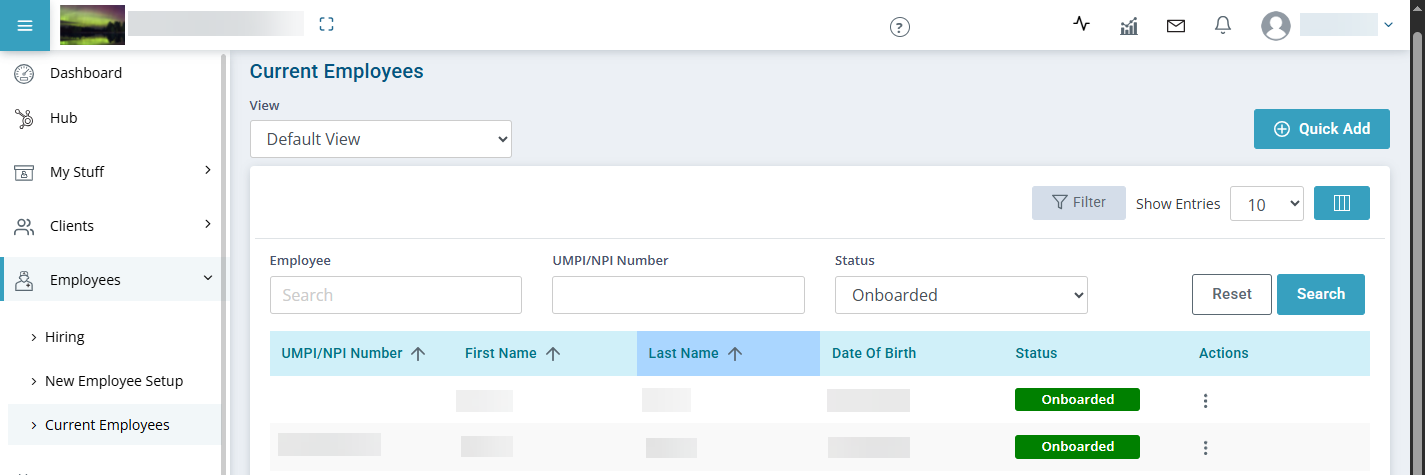
Go to Employees > Current Employees >, locate and open the individual’s profile.
-
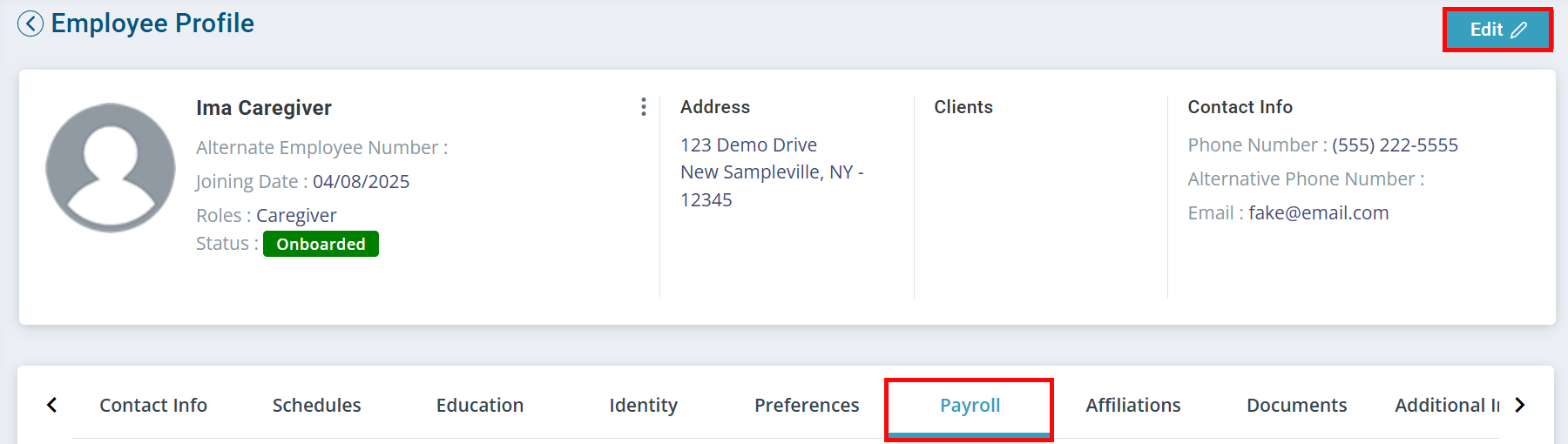
Click the Payroll tab and then click Edit in the upper right-hand corner.
-
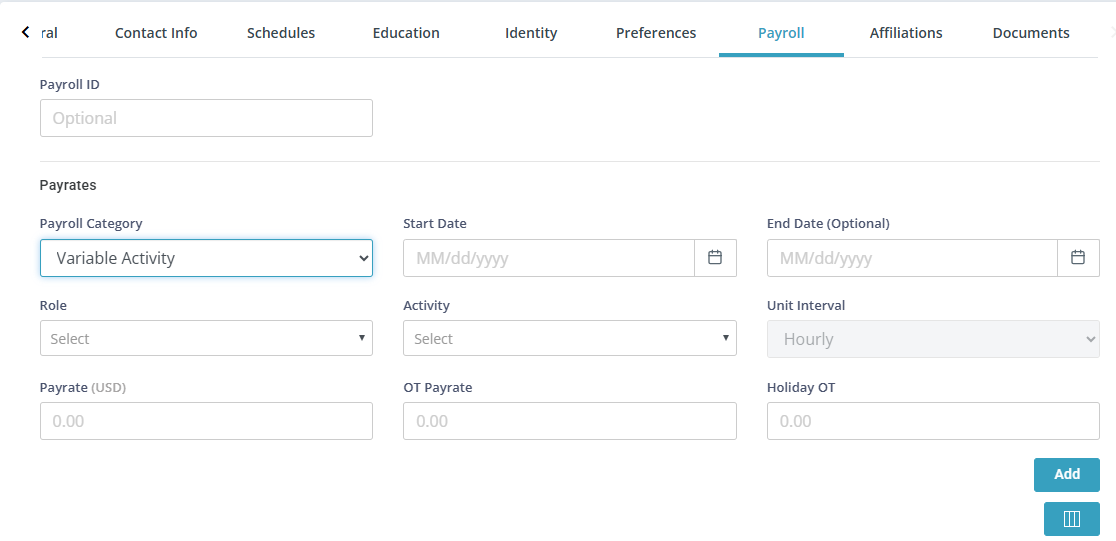
Enter the following Fields:
-
From the Payroll Category field select Variable Activity.
-
Enter a Start Date but do not enter an End Date.
End Dates are intended to be used when you are giving an increase but are not necessary.
-
Select the Role and Activity from those fields.
-
Enter a Payrate and if applicable adjust the OT/Holiday Payrates.
-
-
Click Add and then click Update in the upper or lower right-hand corner.
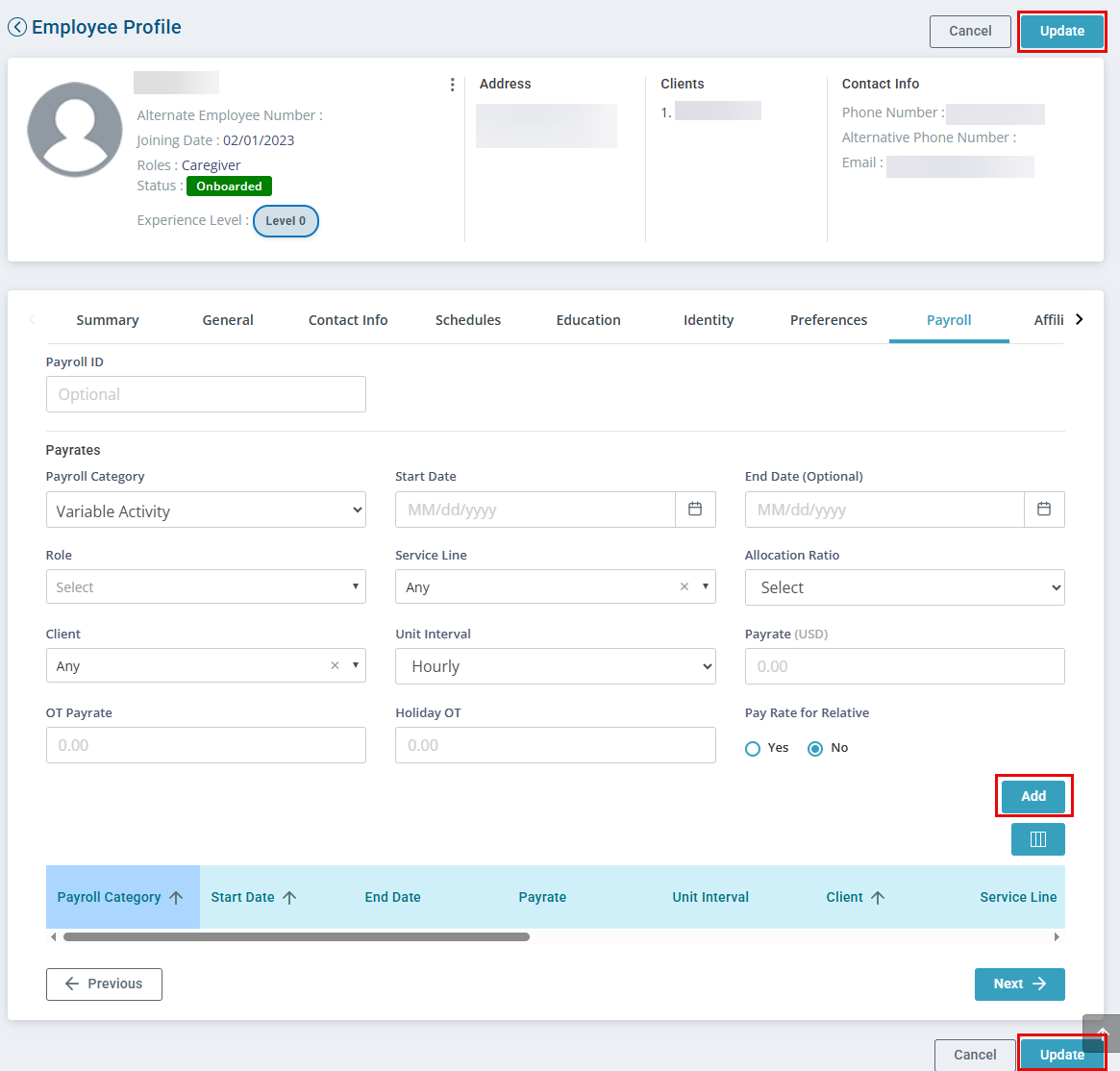
To change an Employee's pay rate, click into the Employee's Profile and select the Payroll tab. Click the Edit button on the upper right.
Enter the Employee Payroll ID. This is the unique Employee ID from your payroll system.
Enter a Payrate for the Employee. The system will calculate the OT Payrate and Holiday OT based on the configuration in Administration > Masters > Configuration > Rate Factor for All Employees. These rate fields are editable if you do not pay OT or Holiday rates for certain roles/services. Holidays must be added in each year under Administration > Masters > Holidays.
You can also indicate here if the Payrate is for taking care of a relative under Pay Rate for a Relative.
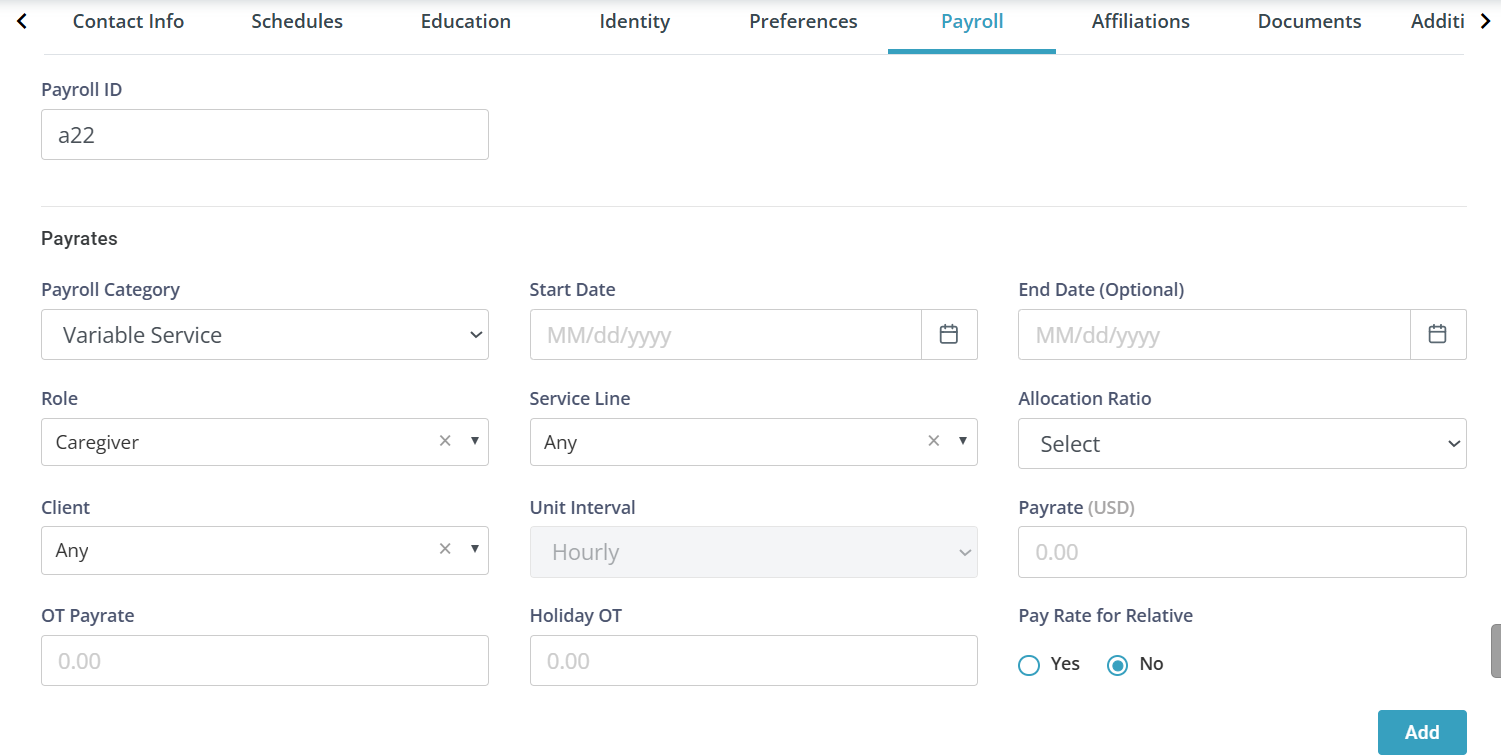
When setting up the employee pay rates there are multiple Payroll Categories to choose from:
-
Fixed Hourly: Employee has one fixed hourly rate no matter what role they are working in (e.g. an employee is a Caregiver and does billing for the Agency and receives the same pay rate for both roles.)
-
Reimbursement: This will allow for reimbursement (mileage or general reimbursement) in session-based services on the app. Reimbursements must be configured under Administration > Masters > Non-Billable Activities) for staff to use.
-
Salaried: No payroll is calculated for employees that are set up as Salaried. These employees can complete visits and document the time with Clients but are ignored for payroll.
-
Variable Activity: Use this option when an employee should be paid for non-billable time that is different than the default rate for the activity (e.g. the default rate for training is $14.00, but this Employee makes $14.75 for training). Non-billable activities must be configured under Administration > Masters > Non-Billable Activities to use.
-
Variable Service:Use this option when Employees can make different rates depending upon the role they are performing, the services they are providing, the allocation for the services, or the client that they are working with.
For example:
Employee A works with Client 1 and 2 for PCA service. For Client 1, payrate is $14 and for Client 2, payrate is $15 an hour.
Or
Employee B works for Client 3 who has PCA and Homemaking. For PCA, payrate is $15 and for homemaking the payrate is $13.
If your Agency is using the Pavillio Payroll feature, initial setup is required before an Employee can enter their payroll information.
To set up an Employee for Pavillio Payroll:
-
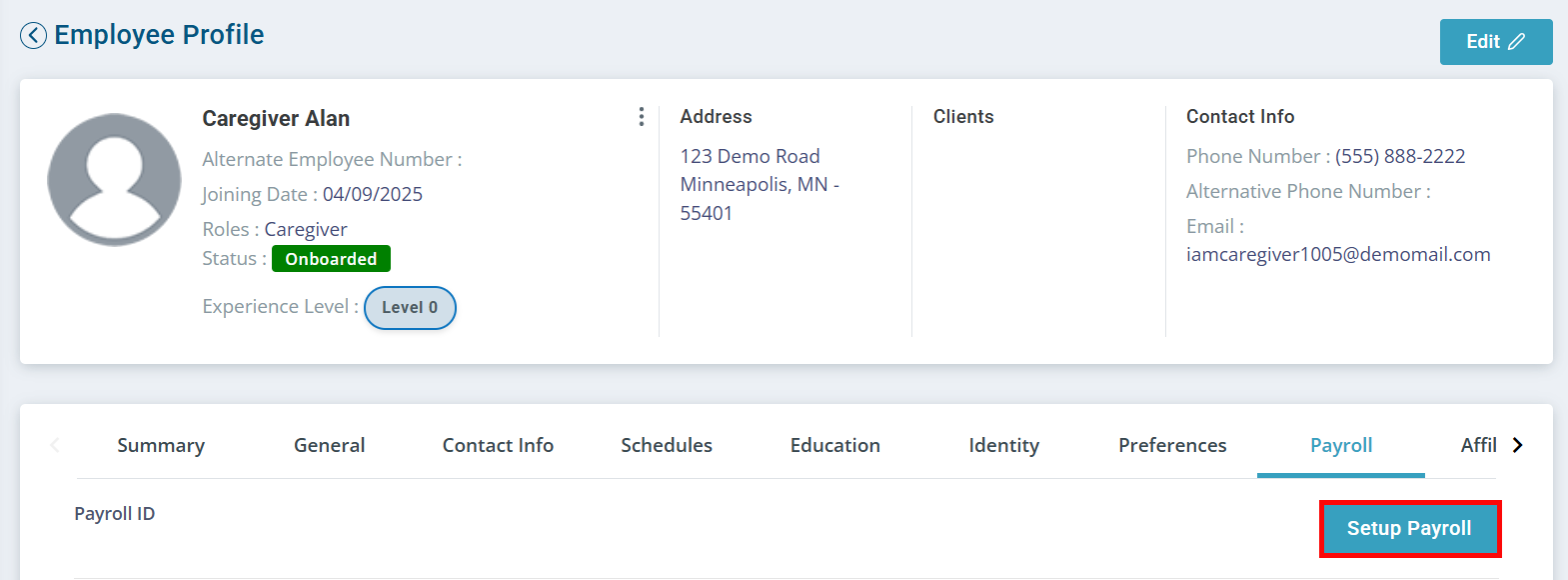
Go to the Employee's Payroll tab.
-
Click the Setup Payroll button.
-
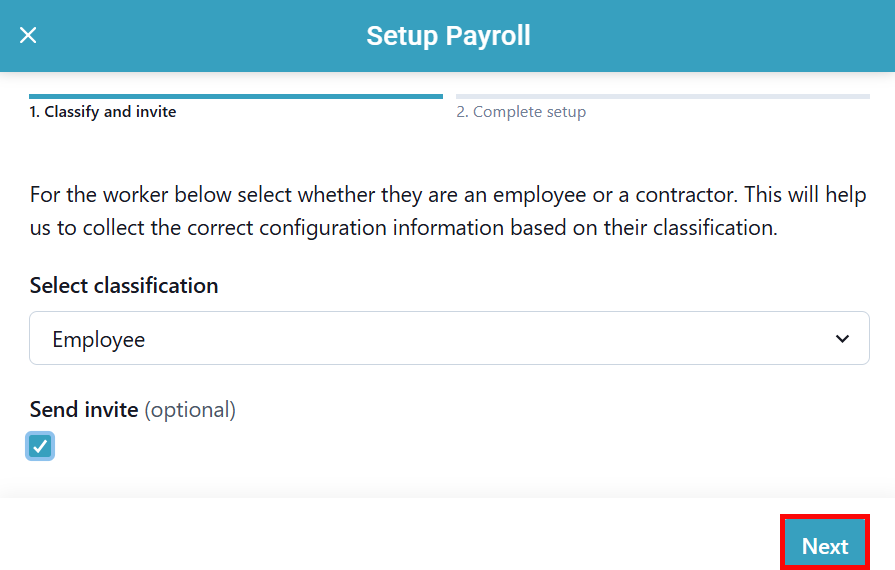
The Setup Payroll panel opens. Select whether the Employee is an Employee or a Contractor using the dropdown.
-
Select the Send invite checkbox to notify the Employee that they need to fill out their payroll information when they next open the Pavillio Mobile App.
-
Click the Next button.
-
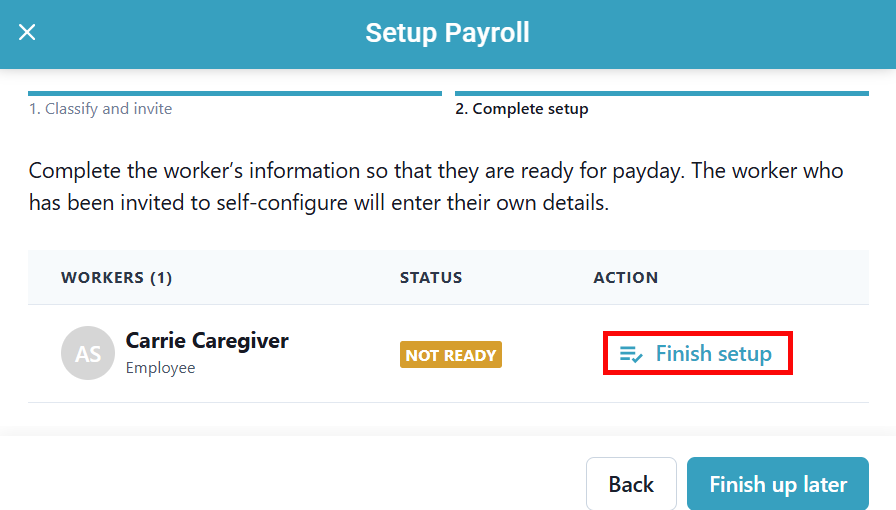
On the following page, click Finish setup under the Action column.
-
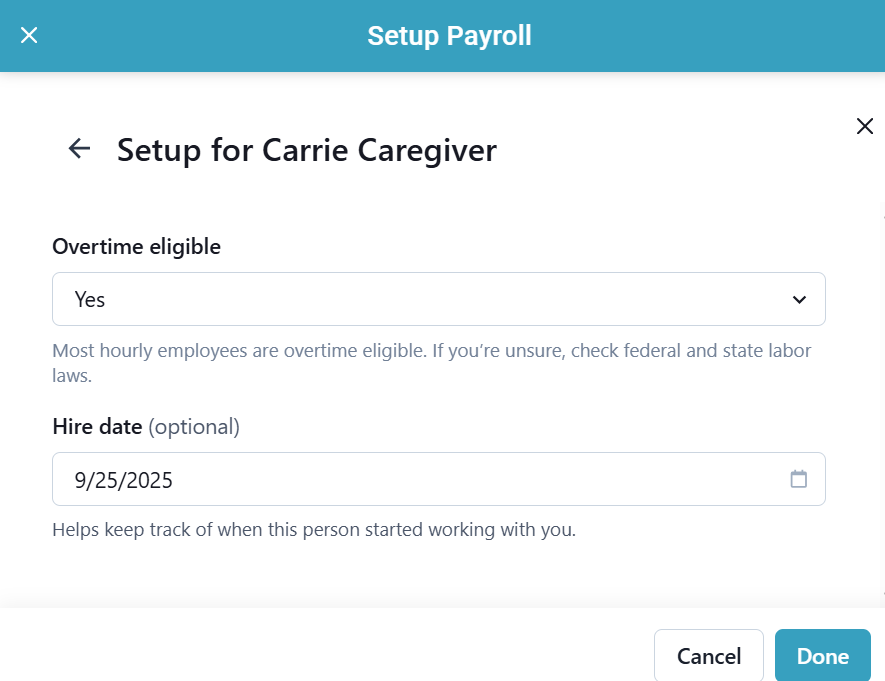
If the Employee has been sent an invite to fill out their information, select whether or not they are Overtime eligible, and select their Hire date (optional).
-
If the Employee has not been sent an invite to fill out their information, you are prompted by a workflow to fill out their Personal info, Employment details, Tax info and Bank info.
-
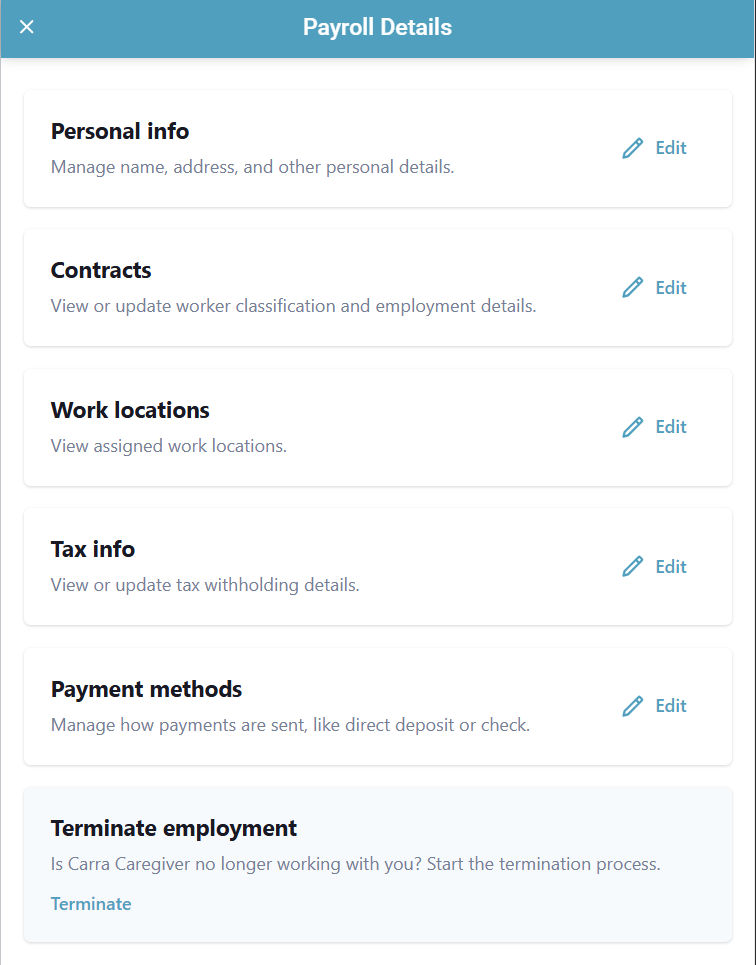
Once the Employee payroll information has been entered, you can access this information by clicking the Access Payroll Details button in the right hand corner.

In the side panel that opens, you can view and edit the Employee's Contracts, Work Locations, Tax Info, Payment Methods, Pay Types, and Time Off. You can also terminate an Employee from this section.