Client Intake
This topic outlines how to complete the client intake process in Pavillio, from creating a new Client record through onboarding. You'll learn how to enter required information, upload documents, and finalize the intake.

To create a Client:
-
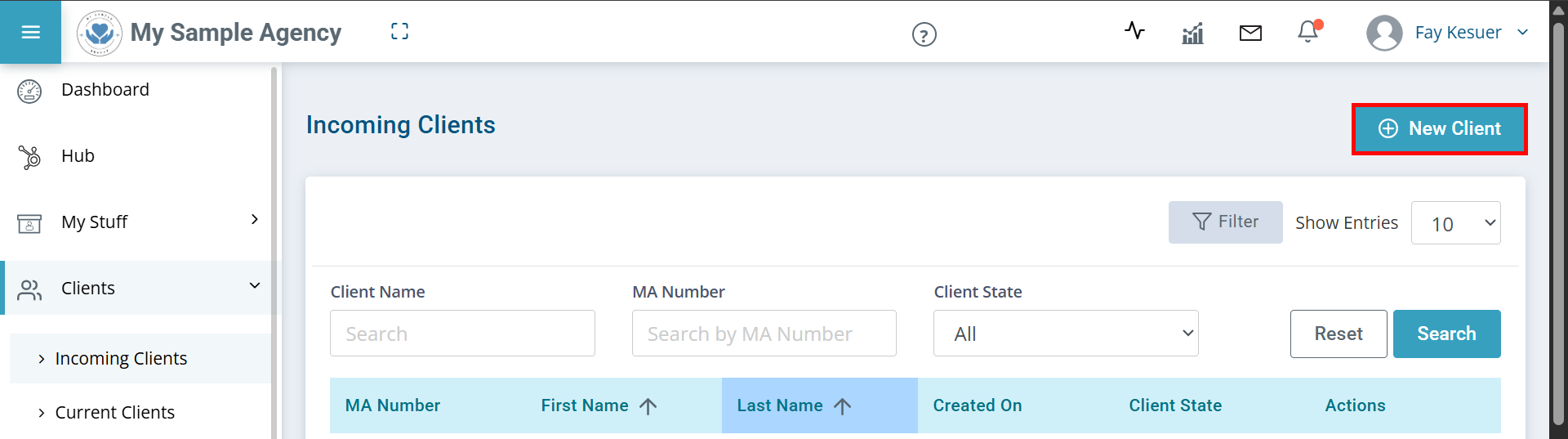
Go to Clients > Incoming Clients.
-
Click the + New Client button.
-
On the following page, complete as much information as possible. Some fields are mandatory. The email address must be unique to the individual. Click Finish.
To complete the onboarding process:
-
Go to Clients > Incoming Clients.
-
Click on the Client record.
-
Verify the Client information to ensure you have the correct record.
-
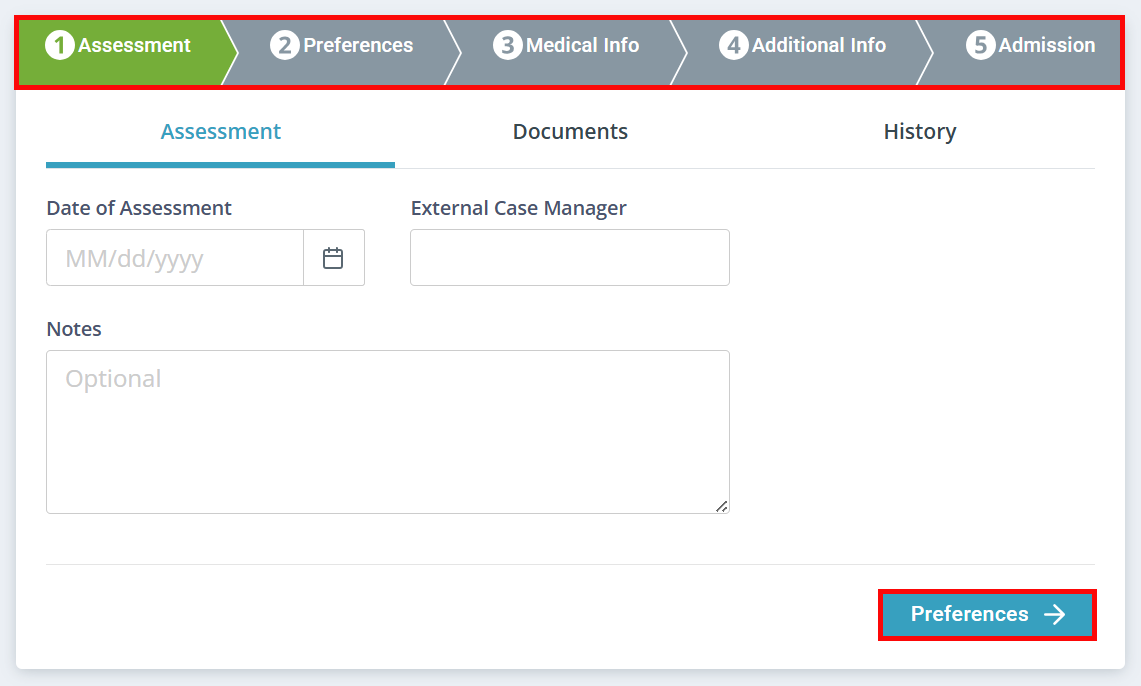
Click through the different tabs to fill out the Client's information.
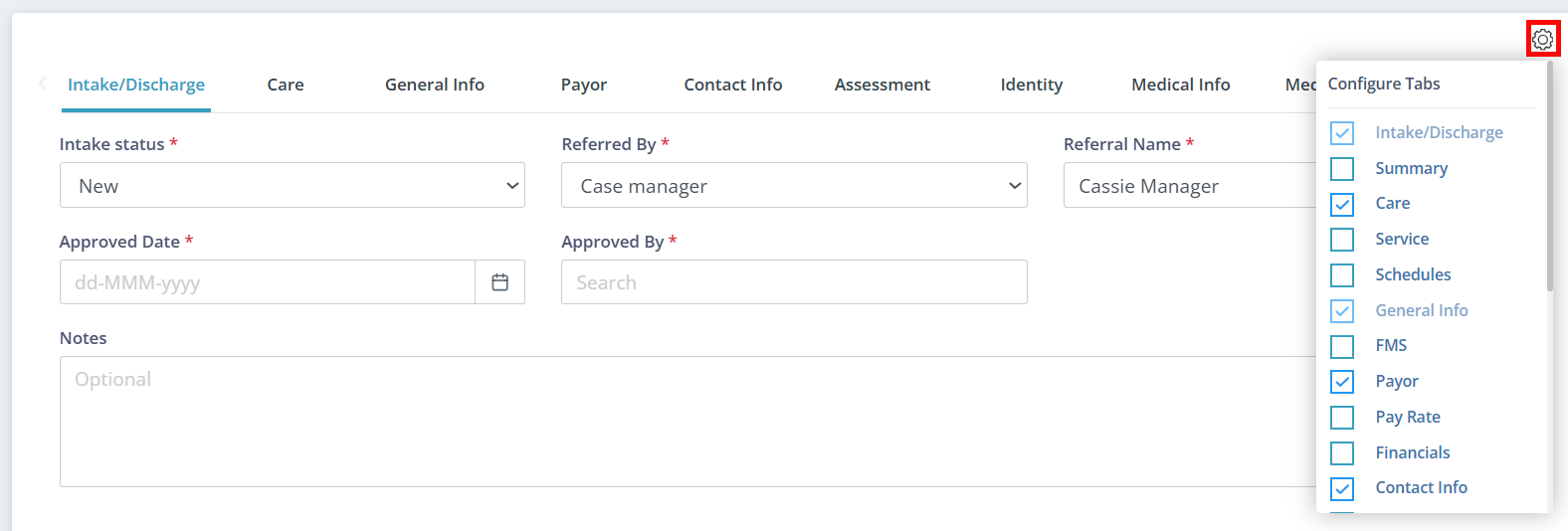
The Intake Status field is used to track the Client's state. There are default options, but Agencies can set their own statuses as well via Administration > Masters > Field Codes & Values > Client Status.
Click Next at the bottom of a tab to move to the next tab.
-
Add additional tabs by clicking the Gear icon above the tabs and selecting the tabs you want to add.
-
Click Update at the top of the page to save the information you have entered.

-
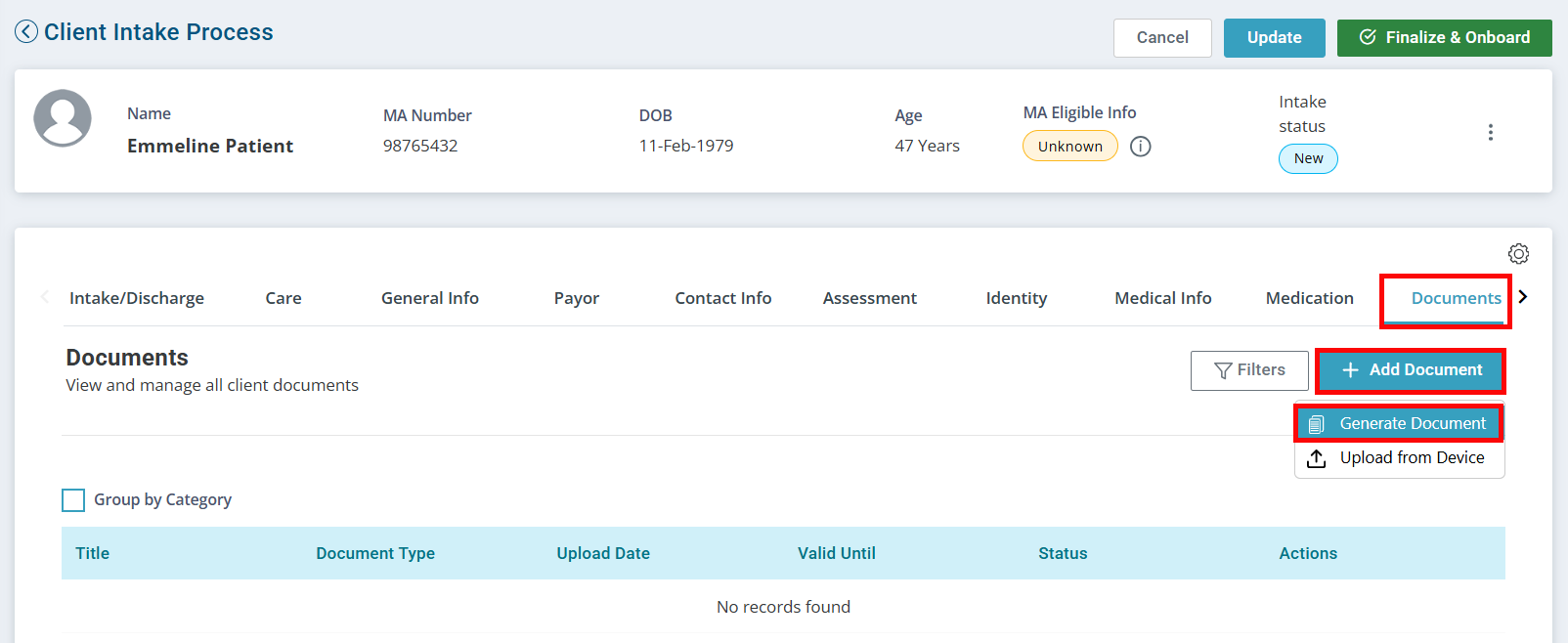
Documents can be uploaded at any point in the process by clicking on the Documents tab, clicking the + Add Document button, and selecting Upload from Device.
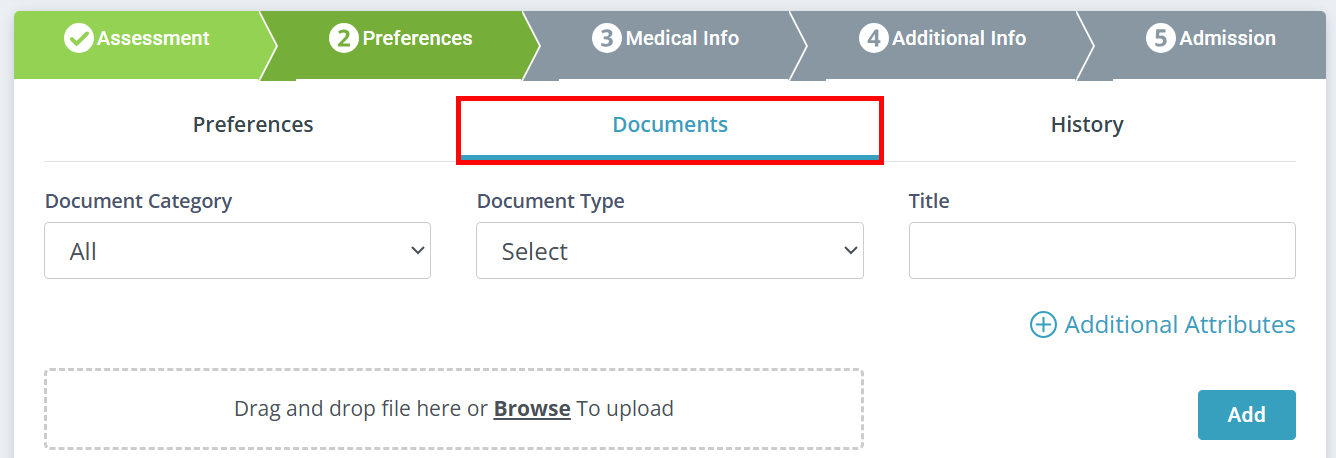
You can also generate documents with the Client's demographic information by clicking the + Add Document button, and selecting Generate Document.
-
When finished, click the Finalize & Onboard button at the top of the page.

-
A prompt opens to confirm you would like to onboard the Client. Click Confirm Onboarding.
The Client has been successfully onboarded.