Paper Timesheets Feature
You can enter visit records manually on the Paper Timesheets feature under Care Management > Paper Timesheet. Be cautious not to enter overlapping times of services provided. A warning displays that the time is overlapping, do not just Finalize the records. Look in Care Management > Service History to see records already entered.

To manually enter timesheets, ensure a Service Agreement is entered for the client, even if it is an interim one, and have the Caregiver assigned to the client.
-
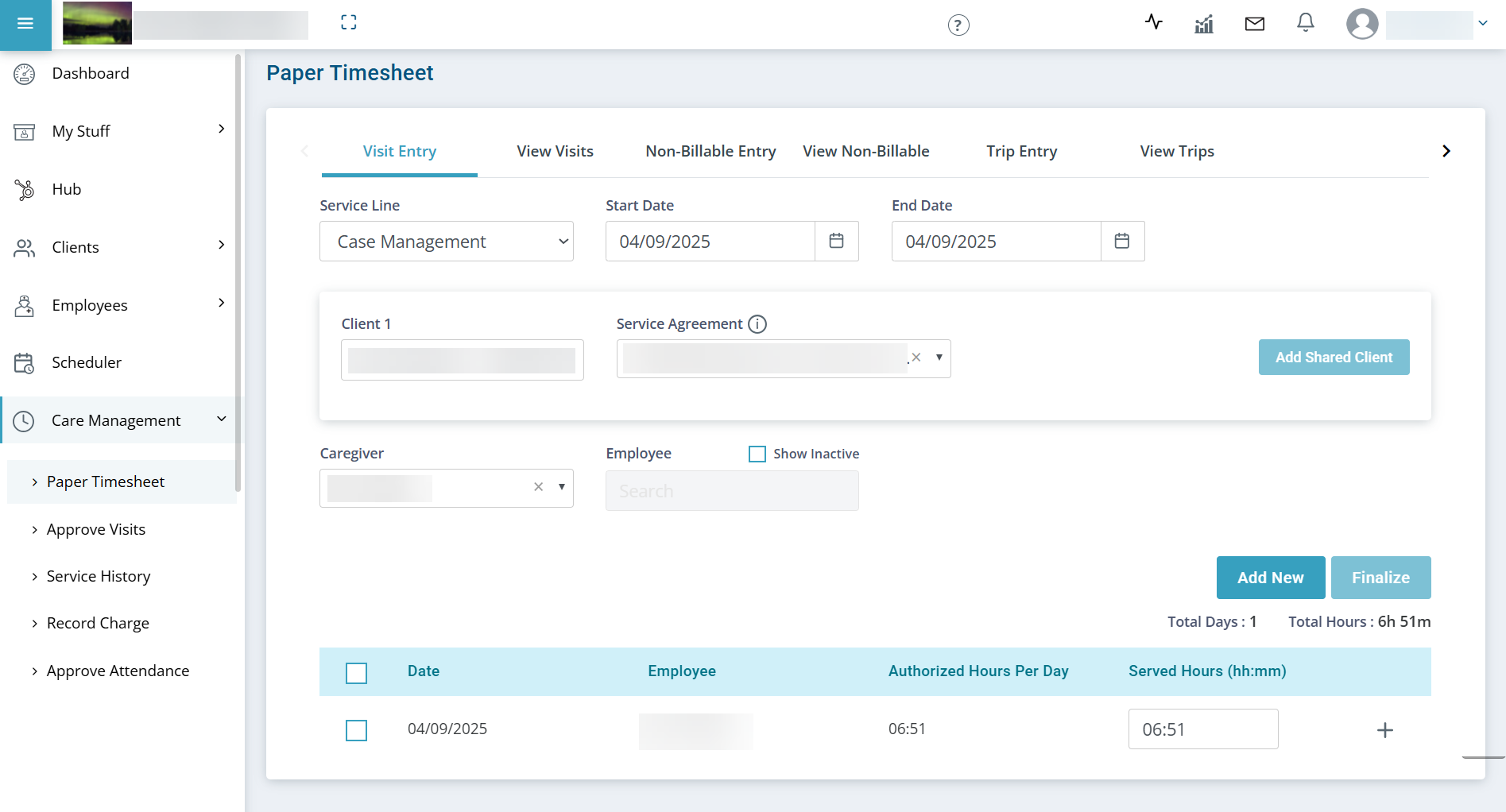
Go to Care Management > Paper Timesheet.
-
Under the Visit Entry tab, complete the fields. Optional: Enter a Note to explain why paper timesheets are being entered. This note is saved to the Client's Service History for all the visits entered in the paper timesheet.
-
Select the Add New button.
The projected daily usage records display. The records are based on the current units remaining in the Service Agreement.
-
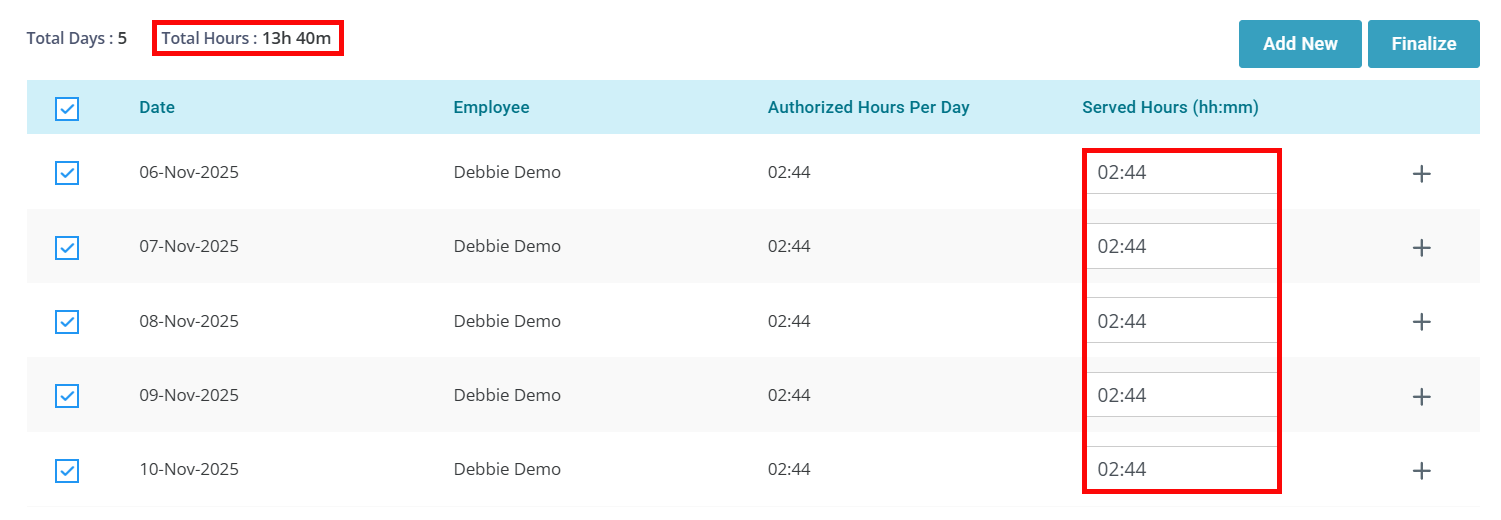
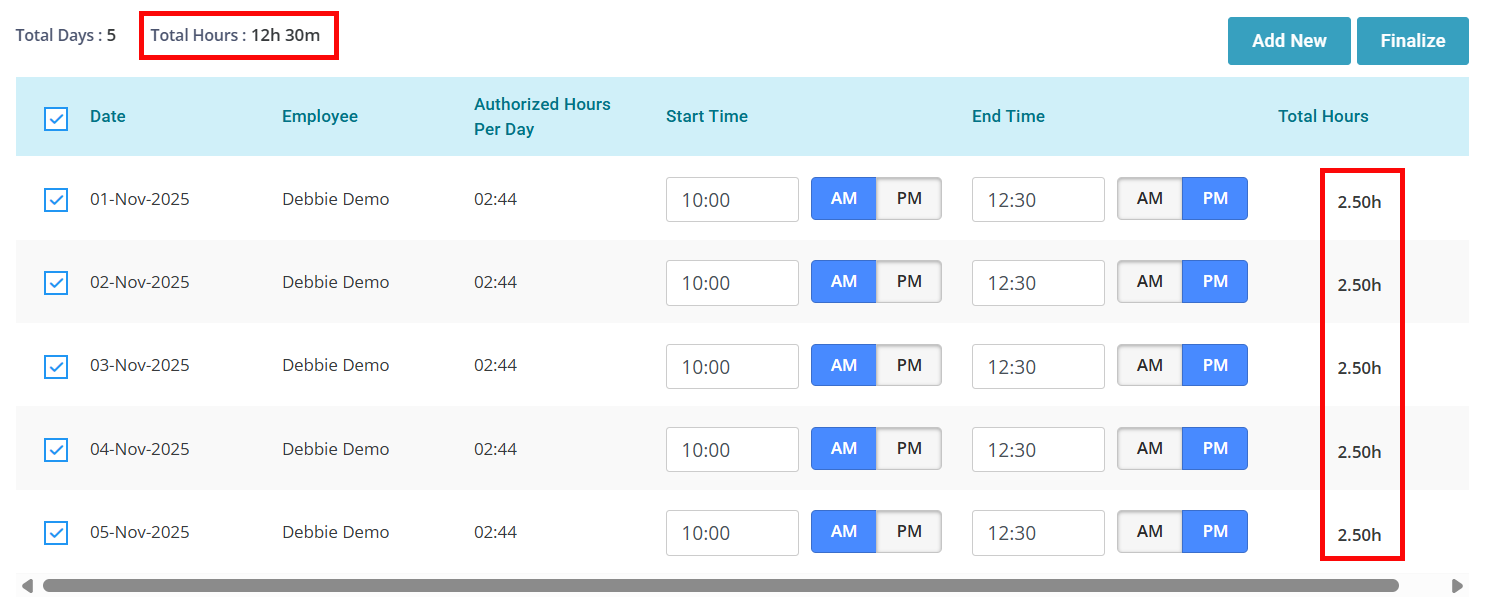
Review the results and adjust the amounts in the Served Hours or the Start & End Times fields. The field that displays depends on your setting in Administration > Masters > Configuration > Portal > Paper timesheet input with Start/End Time.
-
Served Hours: Enter the actual time spent during each visit. For example: If the caregiver has a start time of 1:00 pm and end time of 3:15 pm, enter 02:15. The Total Hours for the entire time period displays above the table.
-
Start & End Times: Enter the actual start and end times. The Total Hours column adjusts accordingly for each day, and the Total Hours for the entire time period displays above the table.
-
-
Select the checkbox beside the record(s) and then select Finalize. A message displays indicating the timesheet is submitted successfully.
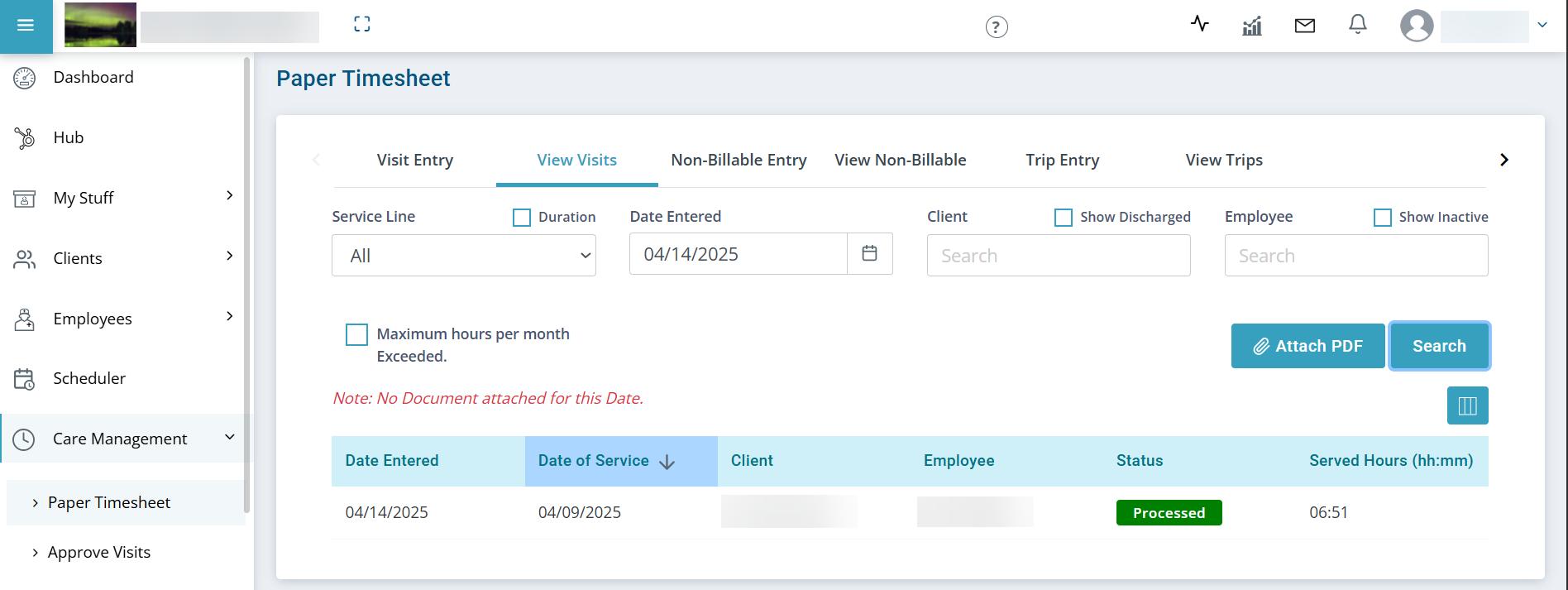
View visits on the View Visits tab when you finish manually entering timesheets and finalized them.
-
Click the View Visits tab.
-
Select the Duration checkbox to enter a date range of when the paper timesheets were entered, and then click the Search button. The finalized records display for the data chosen.
Select the Maximum hours per month Exceeded check box to display visits that exceeded the maximum allowed hours for the month.
-
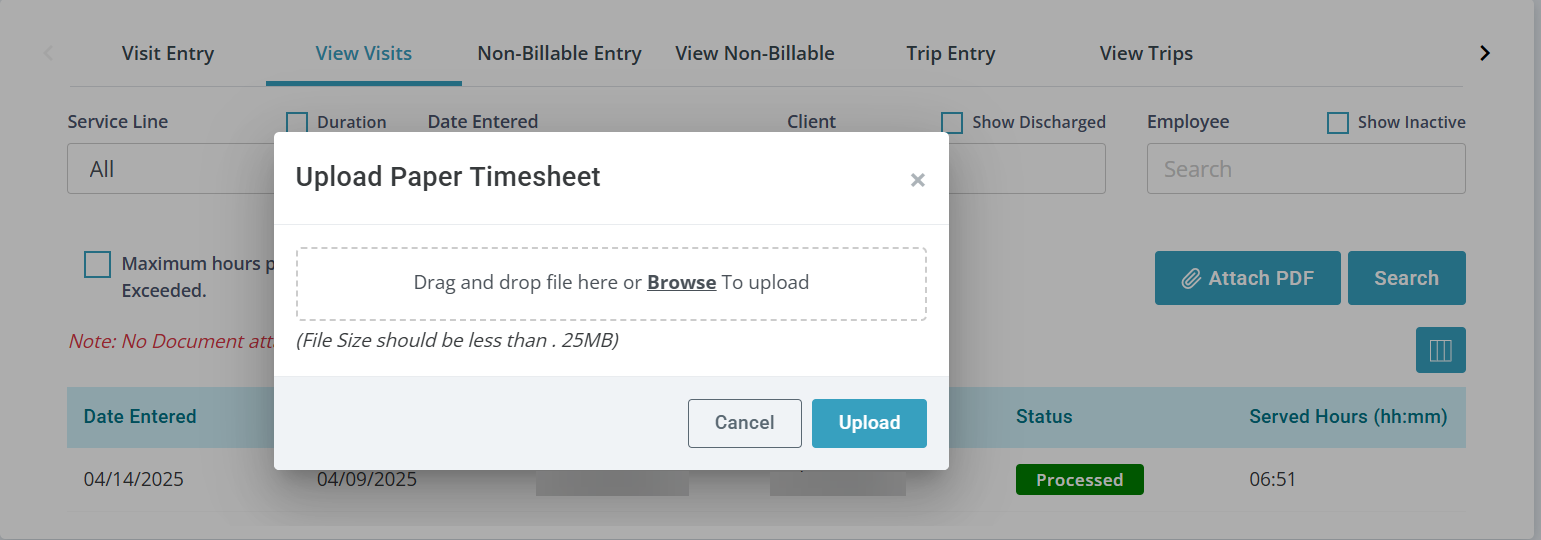
Select the Attach PDF button to upload paper timesheets to the visit. Drag and drop or browse for the file and then select the Upload button. The file size can be no more than 25MB and you can only upload one file to this area. If you try to upload a second file, it over writes the file already uploaded.
Other Resources